Organize Dashboards with Folders
Use folders to group dashboards by service, environment, or team ownership. Folders also control who can view, edit, and manage the dashboards inside them — see Folder Permissions for permission configuration.
Dashboard List
The Dashboard List view provides a centralized location to browse, create, and manage all dashboards within your Kloudfuse instance. From this view, you can add new dashboards, edit or delete existing ones, organize them into folders, and search by name, tags, or filters. Folders also support role-based access control for managing dashboard permissions across your organization.
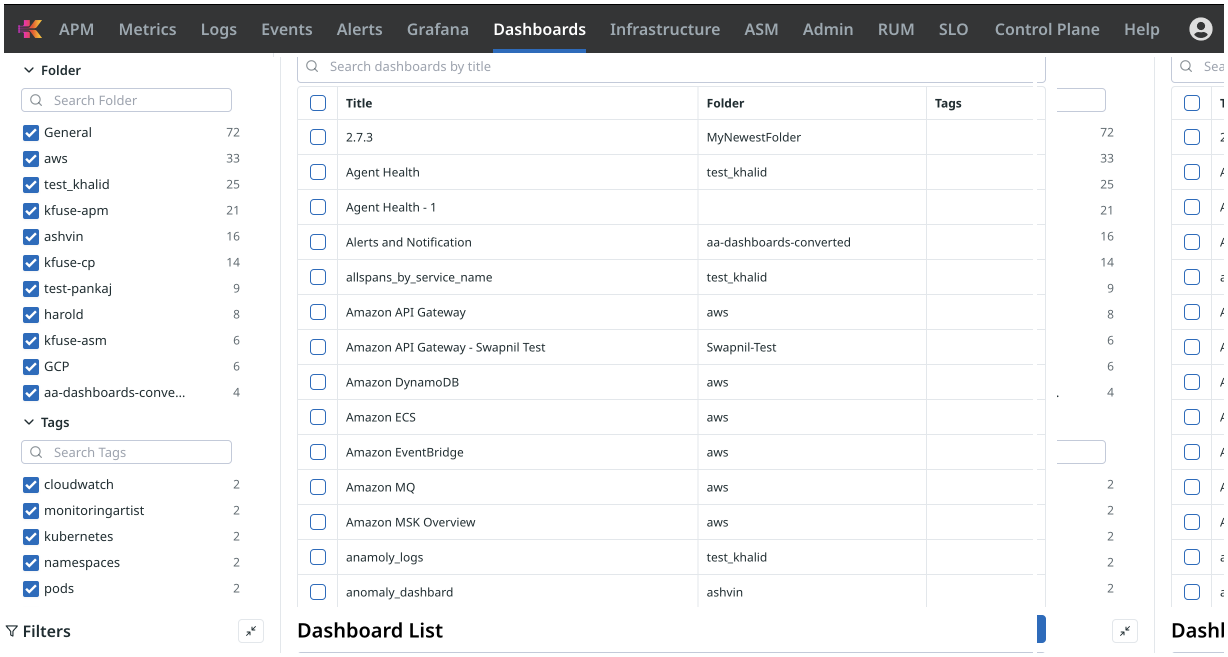
The Dashboard List view lets you:
-
View existing dashboards.
-
Add, edit, export, or delete dashboards.
-
Group dashboards into folders for organization and RBAC.
-
Search dashboards using name, tags, or filters.
To configure who can access a folder, see Folder Permissions.
Create a Folder
-
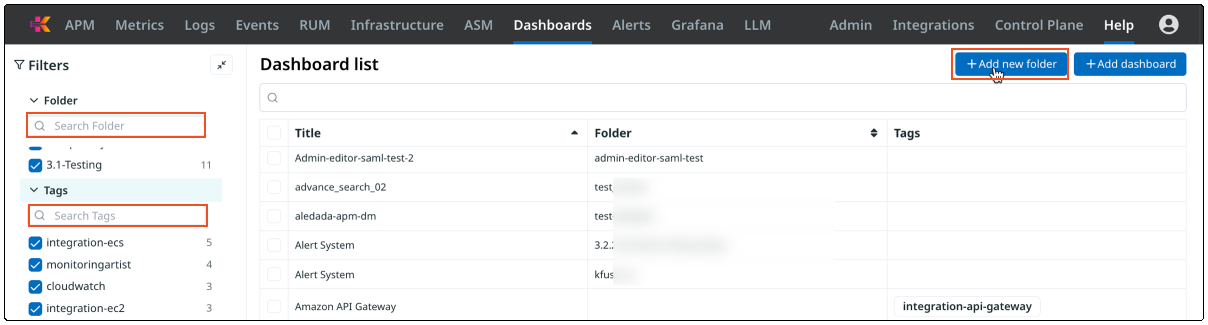
Go to the Dashboards tab.
-
Click + Add new folder.
-
Enter a folder name.
-
Confirm to save.
Assign a Dashboard to a Folder
You must choose a folder when saving or editing a dashboard.
-
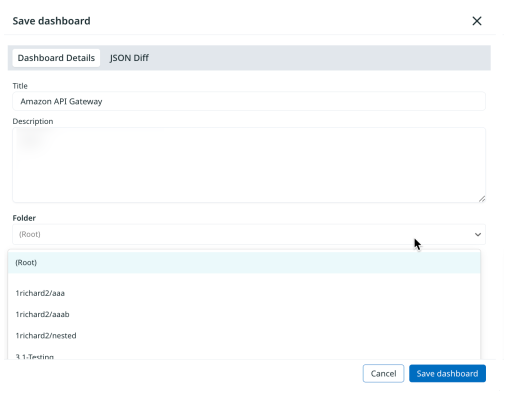
Click Save dashboard.
-
In the Folder dropdown, select a folder from the list.
-
Click Save dashboard to confirm.
|
Folder selection must be done during dashboard creation or editing. |
Rename or Delete a Folder
-
Click the Folder Options menu.
-
Choose Rename or Delete.
|
Deleting a folder does not delete dashboards inside it. They return to the ungrouped list. |
Why Use Folders
-
Organize dashboards logically (e.g., by team, service, environment).
-
Control access per folder — see Folder Permissions.
-
Improve discoverability and reduce clutter.
|
Use consistent naming (e.g., |