Manage Teams
Use this page to create and manage teams, add and remove members, and control team membership roles.
|
Teams must have unique names. |
The topics include:
Navigate to Teams
To manage teams, follow these steps:
-
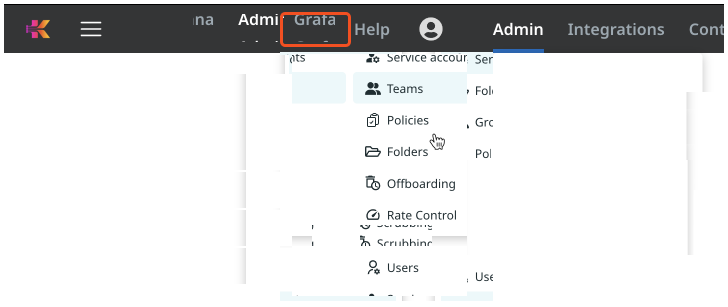
Select the Admin tab, and then the Teams option in the drop-down menu.
-
The Teams interface appears.
Using the Teams Interface
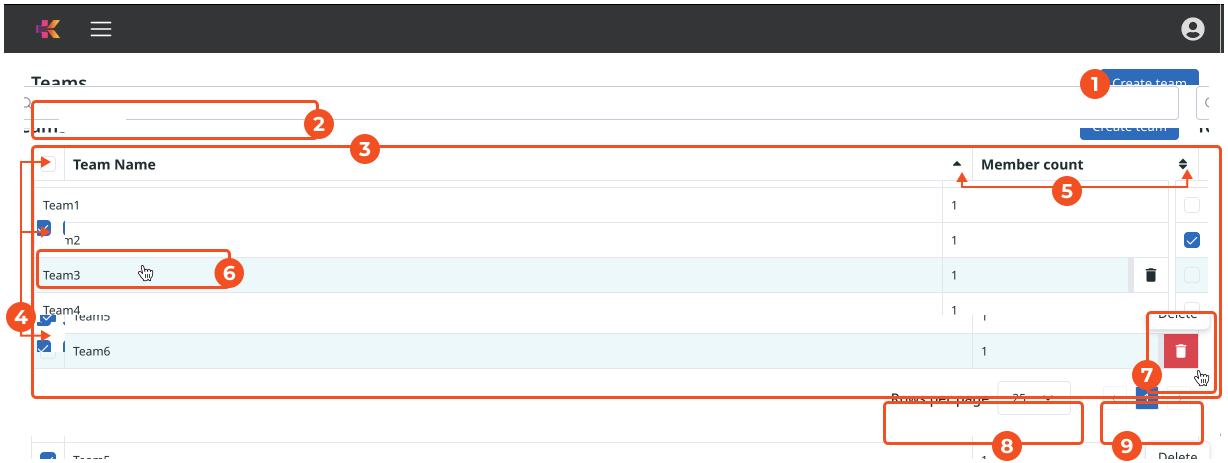
The Teams interface has the following information and affordances:
-
Create team button to create a new team. See Create a Team.
-
Search bar to locate specific teams, by Team name or Owner email.
-
List of existing Teams.
-
Bulk and individual action selectors.
When you select several or all teams in the list, Kloudfuse displays a bulk Delete option. See Delete a Team.
-
Sort for the team list, on Team name.
-
Hover over the team you plan to Change, and click its name; the <TeamName> detail interface appears.
Use this to make changes to add and manage team members, to configure their roles in the team, to specify team policies, to review effective policies, and even delete the team.
-
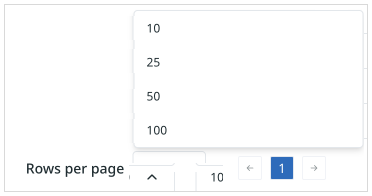
Specify the number of rows you can see on each page.
-
Navigate across pages by clicking individual page numbers, or
 (forward) and
  (backward) arrows.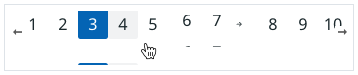
Create a Team
|
Only Admin users can create new teams. |
Follow these steps to create a new team of users:
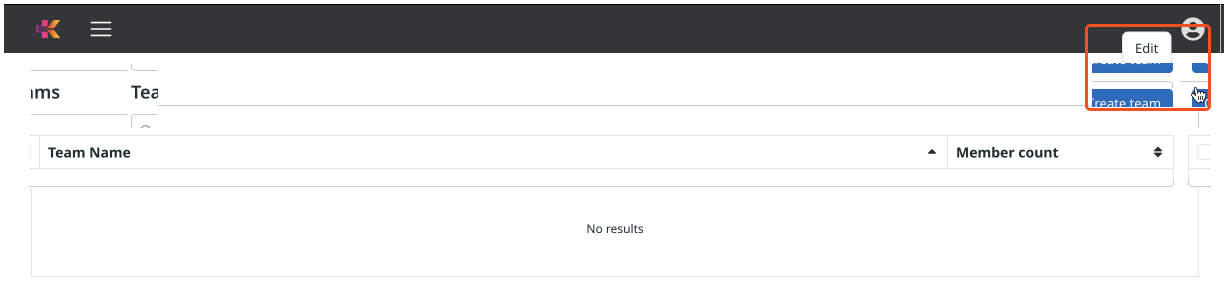
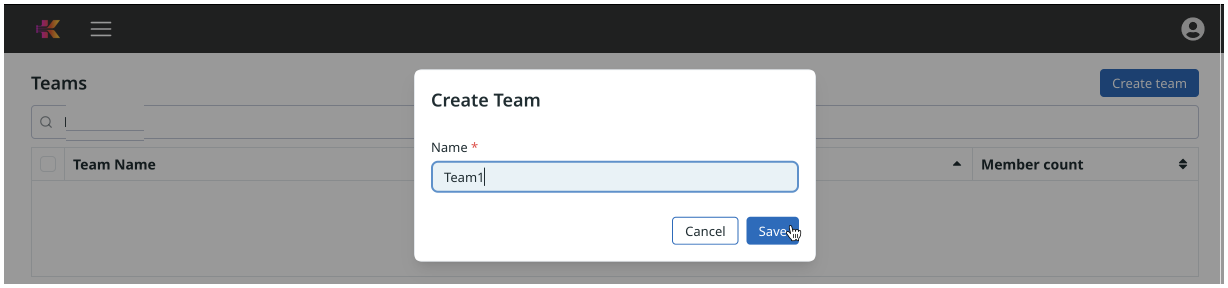

The new team now appears in the Teams interface.
Find a Team
In large organizations, it may be hard to find an existing Team. Kloudfuse enables you to find Teams through our Search function.
-
In Teams, click the Search bar.
-
Start typing the key word, and Kloudfuse automatically filters the list of potential matches.
Default Team Admin
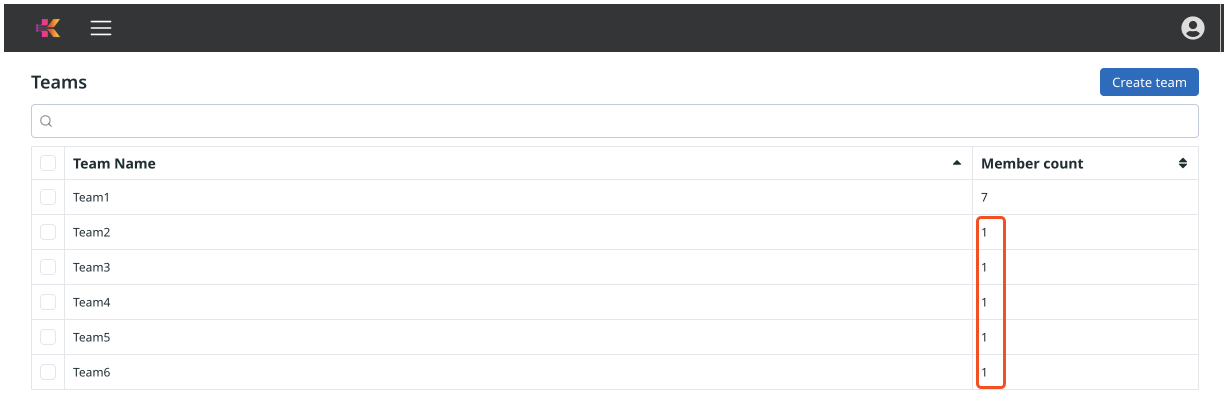
When you create a new Team, Kloudfuse automatically assigns to it a default team member with an Admin Role. You may notice that the new teams, which you had no chance to edit, appear in the Team list with Member count of 1 member each.
Add Team Members
Team members can have one of two roles within the group:
To assign members to a team, follow these steps:
-
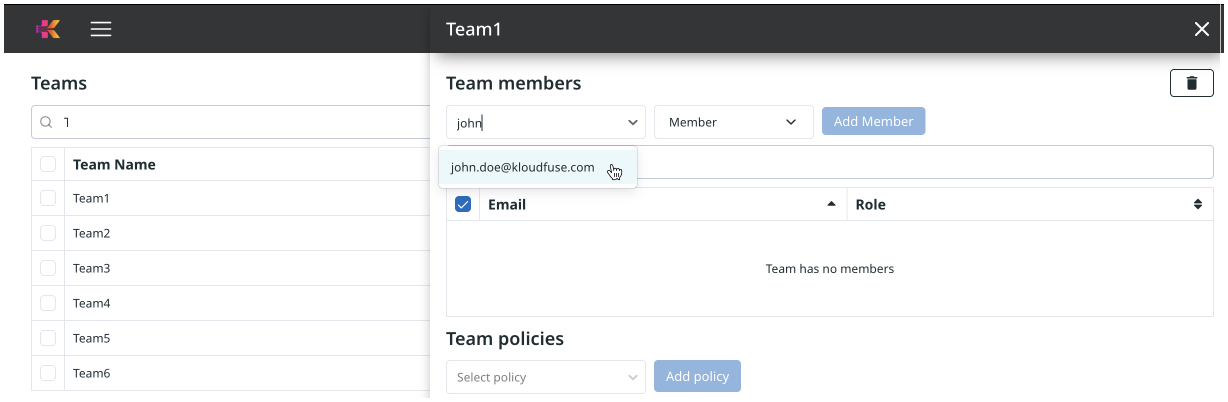
Hover over the team you plan to Change, and click its name; the <TeamName> detail interface appears.
-
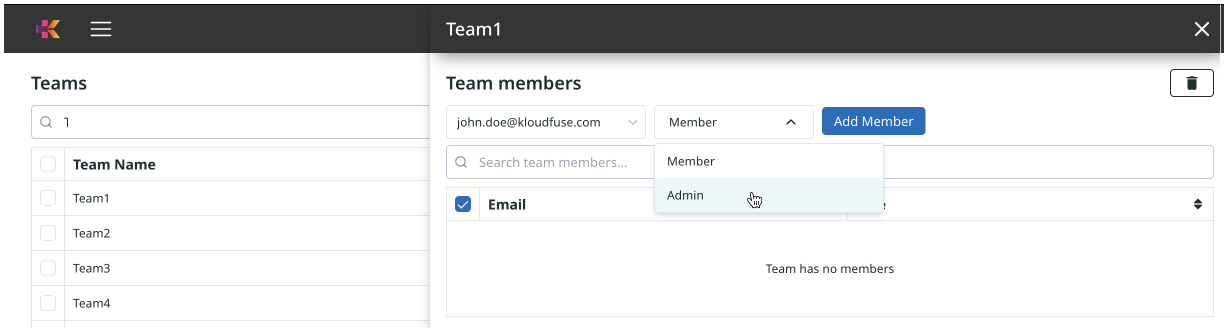
In the Team Members section, use the Select user drop-down to find a user within your organization.
-
In the second drop-down, select the member’s Role within the team.
-
Click
 (Add Member).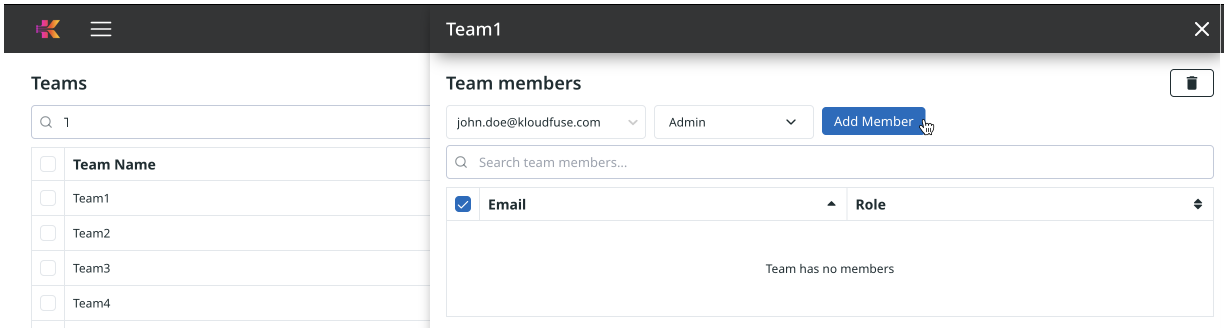
-
The new team member’s information, Email and Role, appears in the list of Team Members.
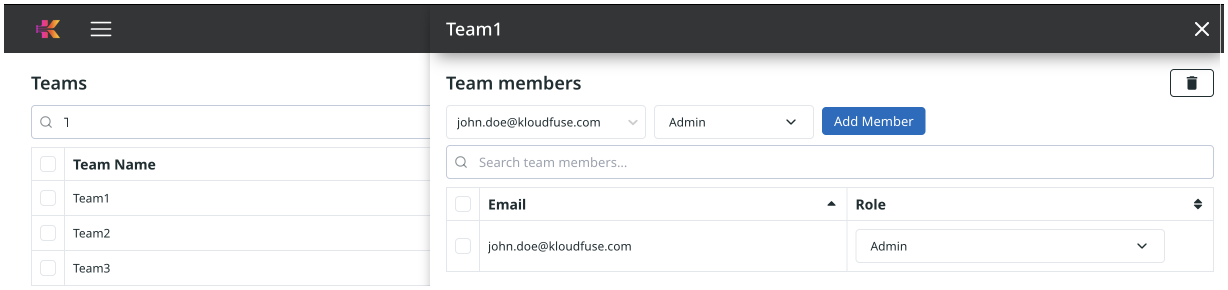
-
Proceed to add more users to the team.
Change a Member’s Role
Occasionally, you may have to change a team member’s role. Follow these steps:
-
Hover over the team you plan to Change, and click its name; the <TeamName> detail interface appears.
-
Select the row for the member where you plan to change the role.
-
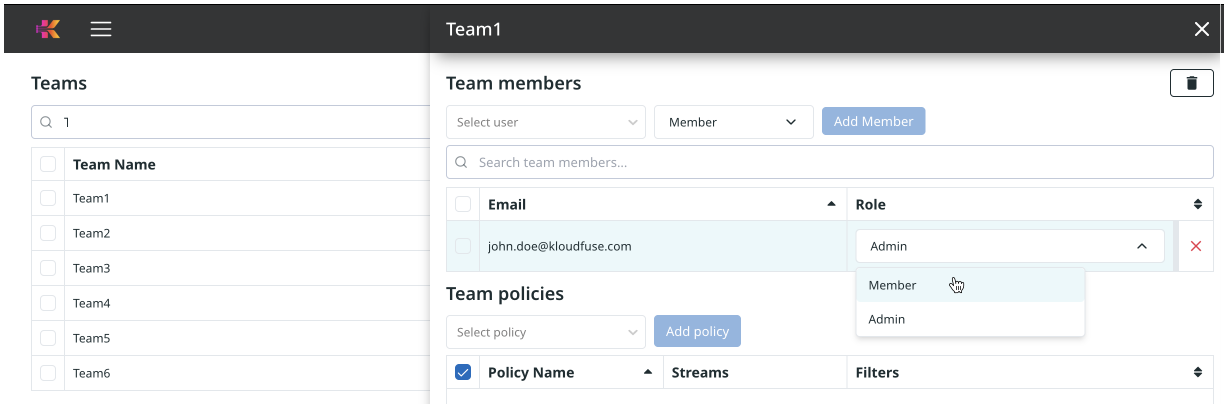
In the Role drop down, select the necessary alternative, and click it.
-
The new role level appears in the list of team members.
Remove a Member from the Team
To remove a member from a team, follow these steps:
-
Hover over the team you plan to Change, and click its name; the <TeamName> detail interface appears.
-
Hover over the member you plan to remove.
-
Click the
 (Remove) icon.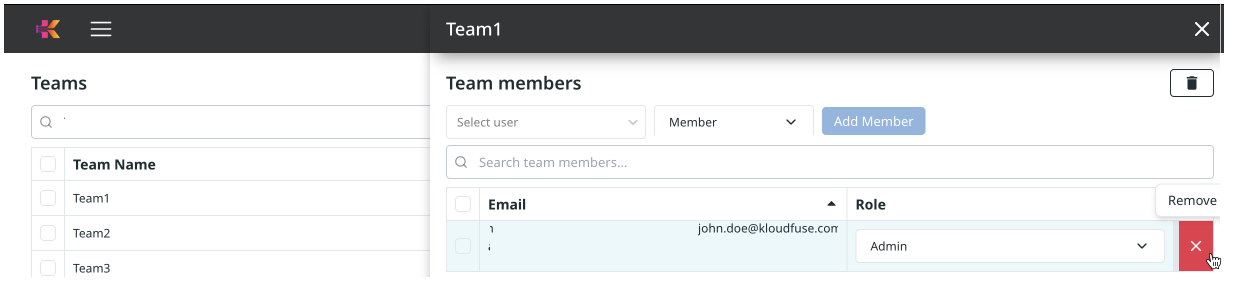
-
In the Remove member confirmation interface, click
 (Remove).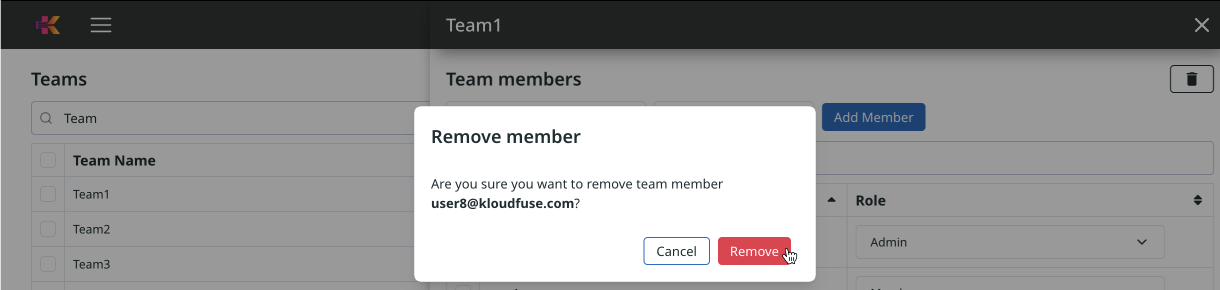
-
Kloudfuse confirms that the member is no longer in the team.
Set Team Policies
For instructions on managing team policies, see Team Policy Assignment.
Delete Team Policies
For instructions on managing team policies, see Team Policy Assignment.
Review Effective Policies
For instructions on managing team policies, see Team Policy Assignment.
Set Query Priorities
The Query priority section on the team detail page lets you override the cluster-wide priority and per-call timeout for every member of the team. See Override Priorities for a User, Team, or Service Account for instructions, and Query Priorities Concepts for the resolution model.
Delete a Team
As organizational needs change, we recommend that you delete teams that no longer serve a business need.
To delete a team, follow these steps:
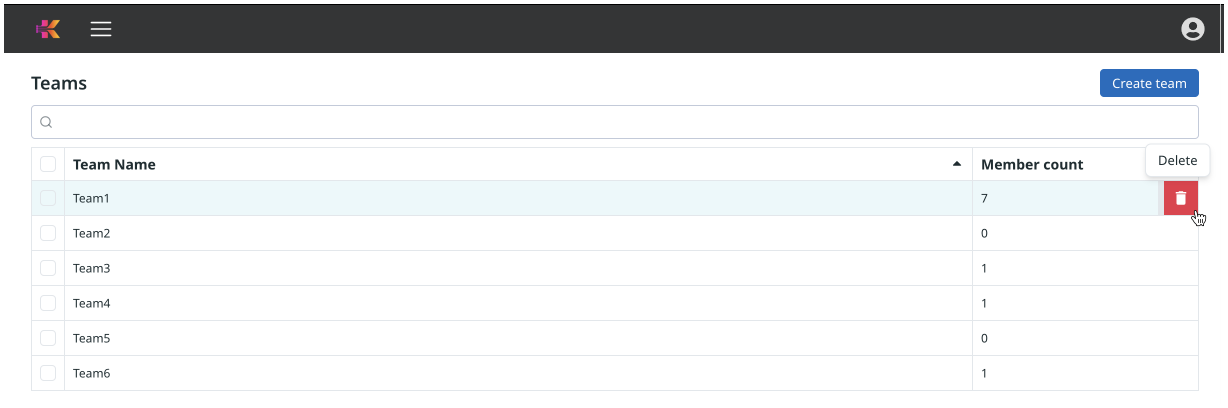

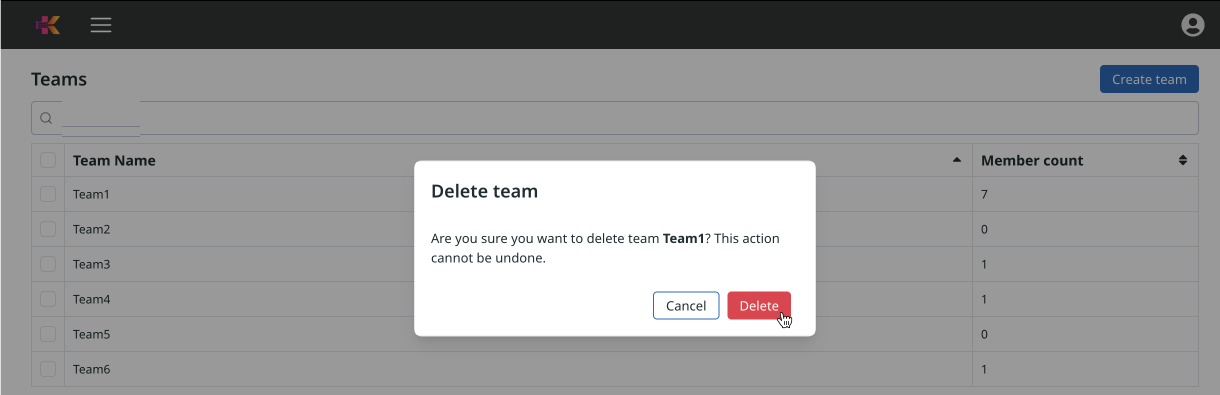
Alternatively,
-
Click the
 icon at the top of the interface.
-
In the confirmation window, click Confirm.

-
Kloudfuse confirms that it deleted the team.
Bulk Delete
Alternatively,
-
Select one or more teams using the checkbox to the left of the team row.
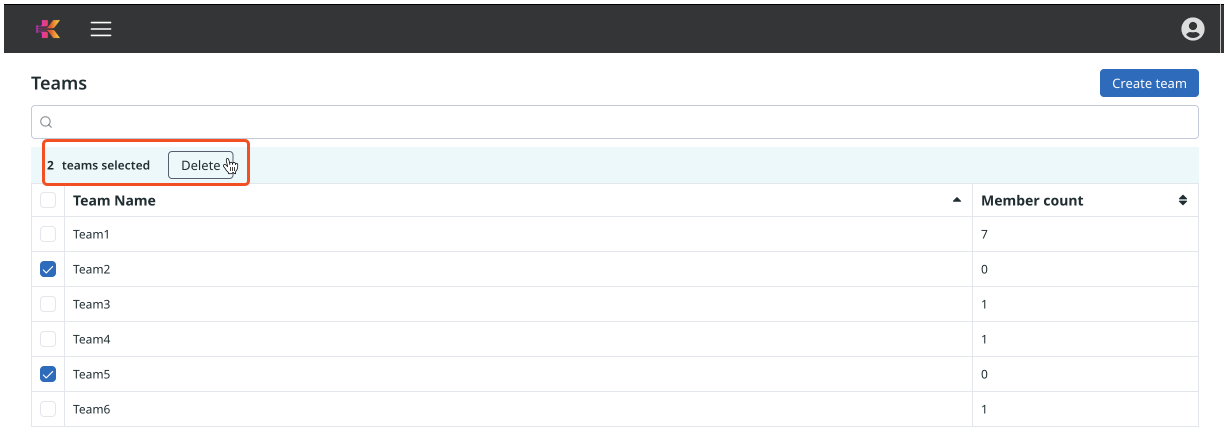 Bulk Delete
 -
Kloudfuse displays the number of selected teams and a Delete button.
-
Click Delete, and follow the Delete Team prompt to confirm, or Cancel to cancel.