Configure Default RBAC Policy
Overview
When configuring a Kloudfuse cluster, you choose whether to enable RBAC and how to assign default access levels to users who do not have an explicit policy assigned.
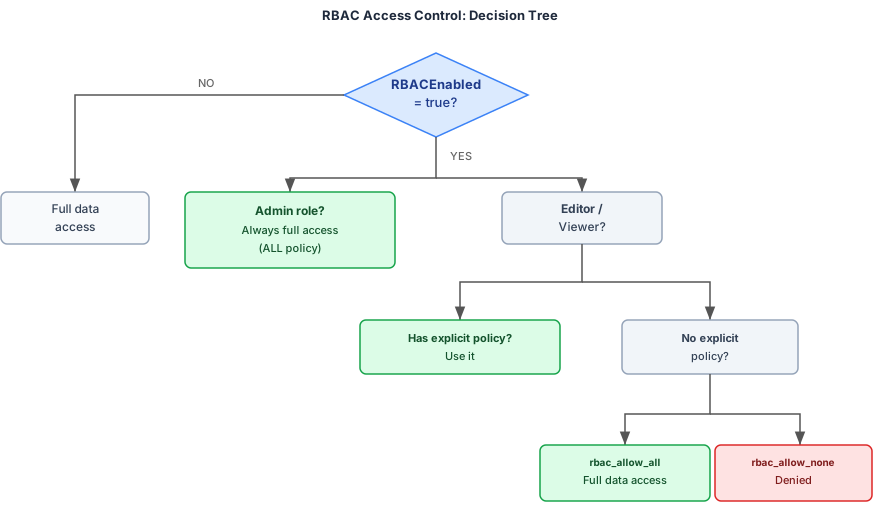
The following flowchart shows how Kloudfuse evaluates data access when a request is made.
-
RBAC Enabled
-
RBAC Not Enabled
When RBAC is enabled, Kloudfuse evaluates access in priority order:
-
Admin role — always receives full access (ALL policy), regardless of the
default_rbac_policysetting. -
Explicit policy assigned — the assigned policy is applied.
-
No explicit policy — for Editor and Viewer users, the
default_rbac_policysetting determines access:-
rbac_allow_all— full data access. -
rbac_allow_none— access denied (default-deny policy applied on all streams).
-
When RBAC is not enabled:
-
Policy evaluation is entirely bypassed.
-
All users have full access to all data streams, regardless of any policy assignments or
default_rbac_policysetting. -
The
default_rbac_policyvalue is ignored.
In the default state of a Kloudfuse deployment, every authenticated user can query all logs, metrics, traces, events, and RUM data — the RBAC layer does not run.
Configuration
Default user role
The default role for new users in Kloudfuse is Editor.
To change the default to Viewer, add the following to custom_values.yaml:
global:
rbacDefaultUserRole: ViewerDefault RBAC policy
Editor and Viewer users who do not have a manually assigned Policy inherit the default policy. Admin users always receive full access regardless of this setting.
user-mgmt-service:
  config:
default_rbac_policy: rbac_allow_all # or rbac_allow_noneSSO Role Groups
When users log in through SSO, Kloudfuse can synchronize group membership from the identity provider (IdP) and assign the corresponding role automatically.
Group Sync
If groups scope is not already included in the oauth2-proxy configuration, add it so Kloudfuse can process group assignments:
kfuse-auth:
  oauth2-proxy:
    extraArgs:
scope: "openid email groups profile"To enable OAuth group synchronization, add the following to custom_values.yaml:
user-mgmt-service:
  config:
    EnableOAuthGroupSync: true # default is false
RemoveFromNonOAuthGroups: true # default is falseRemoveFromNonOAuthGroups: When set to true, users removed from an IdP group are also removed from the corresponding Team in Kloudfuse, but only upon their next login. When set to false (the default), IdP group removal does not affect Kloudfuse group membership.
You must also ensure that your SSO provider sends a groups attribute as part of the user profile in the SAML request.
|
SSO Groups to Roles
Users are assigned a role based on their membership in one of the following groups:
-
<prefix>Admin— assigns the Admin role. -
<prefix>Editor— assigns the Editor role. -
<prefix>Viewer— assigns the Viewer role.
The default prefix is role:. For example, a user in the group role:Admin is assigned the Admin role. To use a different prefix, update custom_values.yaml:
user-mgmt-service:
  config:
OAuthRolePrefix: "role:" # default is 'role:'SSO Specific Limitations
-
Okta — supports SAML or OAuth 2.0.
-
Google — supports SAML only.
-
Google OIDC — does not support group information; group-to-role mappings must be configured manually.
Troubleshooting
User Role Changes Unexpectedly
Symptom: A user’s role appears to change between logins — for example, they are sometimes Admin and sometimes Editor.
Cause: The user belongs to more than one role group in the IdP (for example, both role:Admin and role:Editor). When Kloudfuse receives the group list from the IdP, it uses only the first matching role group and logs a warning:
User has multiple role groups, using the first oneThe "first" group is determined by the order the IdP sends them in the X-Auth-Request-Groups header, which is typically not guaranteed. As a result, the user may receive a different role on each login with no error — only a warning in the logs.
Resolution: Ensure each user belongs to exactly one role:* group on the IdP side. Remove any duplicate role group assignments for that user.
User Not Assigned to the Correct Role After SSO Login
Symptom: A user is a member of a role group in the IdP (for example, role:Admin) but logs into Kloudfuse with a different role or no role at all.
Cause: The IdP is not including the groups attribute in the SAML assertion sent to Kloudfuse. Without the groups claim, Kloudfuse cannot map the user to their role group.
Resolution: Capture a SAML trace to verify whether the groups attribute is present in the SAML response, then configure your IdP to include it if it is missing.
Capture a SAML Trace in Chrome
-
Install the SAML-tracer extension from the Chrome Web Store.
-
Open a new Chrome tab and click the SAML-tracer icon in the toolbar to open the tracing panel.
-
In the same browser session, navigate to your Kloudfuse login page and complete the SSO login flow as the affected user.
-
In the SAML-tracer panel, look for a request marked with an orange SAML badge — this is the SAML response your IdP sent.
-
Click that request and select the SAML tab in the detail pane.
-
Search for a
groups(orGroup) attribute in the decoded assertion. It should look similar to:<saml:Attribute Name="groups"> <saml:AttributeValue>role:Admin</saml:AttributeValue> </saml:Attribute>xml
If the groups attribute is absent, configure your IdP to include group membership in the SAML assertion and ensure the attribute name matches what Kloudfuse expects. See Configure Group Sync for the required scope and attribute configuration.
Manual Role Assignment Overwritten
Symptom: A user’s role was manually set in Kloudfuse but reverts to a different role after each login.
Cause: EnableOAuthGroupSync is set to true. When enabled, the role from the SAML assertion’s role group overwrites any manually assigned role on every login. The SAML group role always wins.
For example: if a user is manually set to Admin in Kloudfuse but their SAML assertion includes role:Viewer, they will be downgraded to Viewer on their next login — and on every subsequent login — until the SAML group changes or group sync is disabled.
The following table describes the behavior for each scenario:
| Scenario | Outcome |
|---|---|
|
The SAML group role overwrites the manually assigned role on every login. |
|
The manual role is preserved — no role override occurs because no role group was found in the assertion. |
Resolution: To prevent manual role assignments from being overwritten, choose one of the following:
-
Remove the user from all
role:*groups in the IdP. -
Update the user’s IdP role group to match the desired role in Kloudfuse.