Codex
Connect OpenAI Codex to the Kloudfuse MCP server. Codex opens your browser for SSO, stores the tokens locally, and the Kloudfuse tools show up alongside Codex’s built-in ones. The Codex desktop app and the CLI share ~/.codex/config.toml, so a server added in one is visible in the other.
Prerequisite
An operator has already enabled the connector on your Kloudfuse cluster by following Enable on the Cluster. If you haven’t done that step, codex mcp login (or the first tool call from the app) will fail discovery.
Install the Connector
Pick whichever entry point you use. All three result in the same ~/.codex/config.toml entry.
-
Codex App
-
CLI
-
Config file
-
Open the Codex desktop app.
-
Click Settings and select MCP servers from the left sidebar.
-
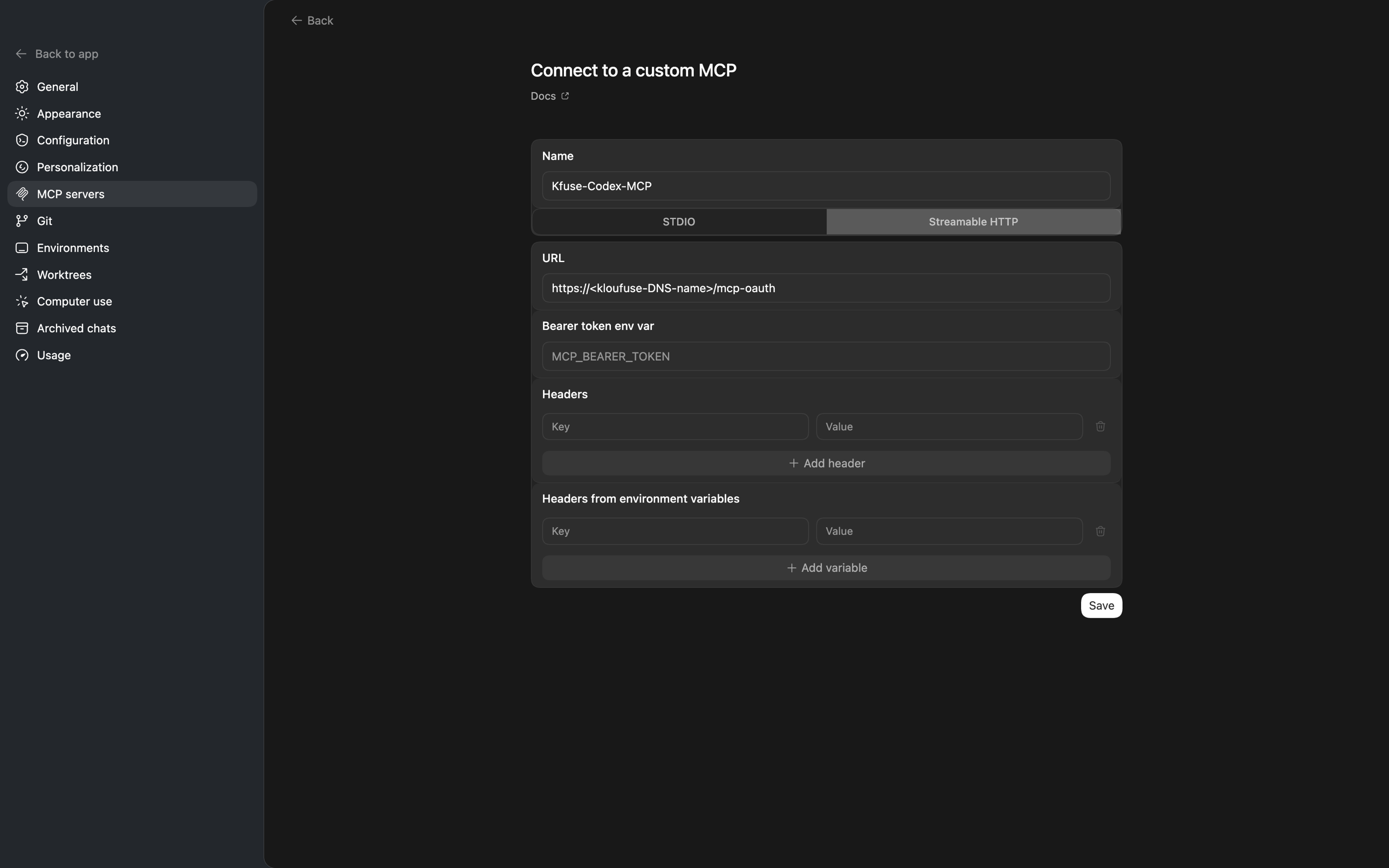
Click Add (or the equivalent "New server" button) to open the Connect to a custom MCP form:
-
Fill in the fields:
Field Value Name
Any friendly identifier, e.g.
kfuseorKfuse-Codex-MCP. This is the server handle you will pass tocodex mcp login <name>in the next step, so remember what you typed here.Transport
Select Streamable HTTP
URL
Bearer token env var
Leave empty — Kloudfuse uses OAuth, not a static bearer token
Headers
Leave empty
Headers from environment variables
Leave empty
-
Click Save.
-
Authenticate. Codex prompts for SSO on the first tool call, or you can trigger it immediately from a terminal — replace
<name>with whatever you typed in the Name field above:codex mcp login <name>bash
| STDIO is for local-process MCP servers. Kloudfuse runs remotely, so always pick Streamable HTTP. |
codex mcp add kfuse --url https://<KLOUDFUSE_URL>/mcp
codex mcp login kfuseCodex opens a browser for SSO. On success, tokens are stored locally and Codex exits back to the shell.
Edit ~/.codex/config.toml directly:
[mcp_servers.kfuse]
enabled = true
url = "https://<KLOUDFUSE_URL>/mcp"Then authenticate from the terminal:
codex mcp login kfuseVerify
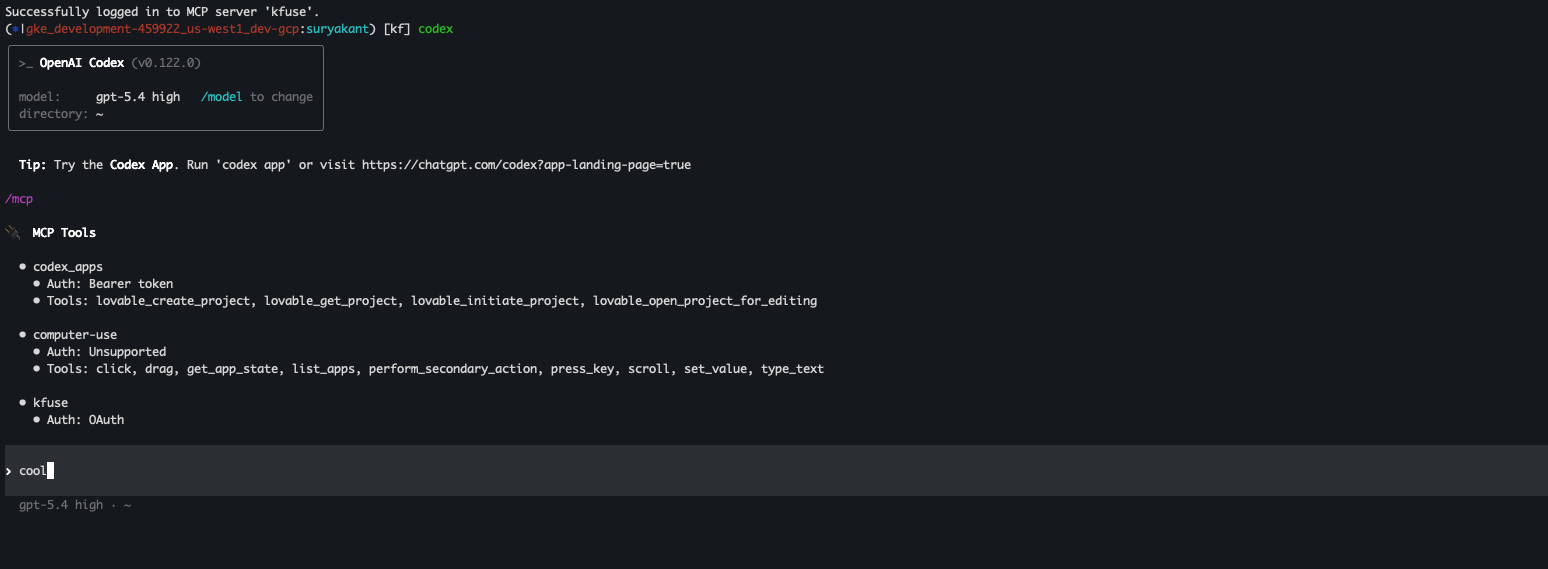
Start Codex and run /mcp in the TUI. The Kloudfuse server should appear with Auth: OAuth and the full tool list:
Manage the Connector In-App
Codex exposes several commands to manage the connector once configured. Replace <name> with the identifier you chose when adding the server (for example kfuse):
-
codex mcp list— show every configured MCP server and its status. -
codex mcp get <name>— print the stored config for this entry. -
codex mcp login <name>— re-run the SSO flow (use this if the token expires or you switch identities). -
codex mcp remove <name>— delete the server entry and cached tokens.
You can also restrict which Kloudfuse tools Codex is allowed to call by editing ~/.codex/config.toml:
[mcp_servers.kfuse]
url = "https://<KLOUDFUSE_URL>/mcp"
enabled_tools = ["logs_search", "prometheus_query"]   # allow list
# disabled_tools = ["delete_all_entities"]            # deny list, applied after enabled_tools
Tool allow/deny lists take effect on the next codex launch.
|