Gemini CLI
Connect Google’s Gemini CLI to the Kloudfuse MCP server. Only the server URL goes into the settings file — Gemini discovers the rest.
Prerequisite
An operator has already enabled the connector on your Kloudfuse cluster by following Enable on the Cluster. If you haven’t done that step, /mcp auth <name> will fail at discovery.
Install the Connector
Add the server entry to ~/.gemini/settings.json. The JSON key under mcpServers is the server handle — remember what you pick, because the same string is what you pass to /mcp auth <handle> below. The example uses kfuse:
{
  "mcpServers": {
    "kfuse": {
      "httpUrl": "https://<KLOUDFUSE_URL>/mcp",
      "authProviderType": "dynamic_discovery",
      "oauth": {
        "enabled": true
      }
    }
  }
}Replace <KLOUDFUSE_URL> with your cluster URL. Then start Gemini and authenticate inside the TUI (use the JSON key from above — kfuse in this example):
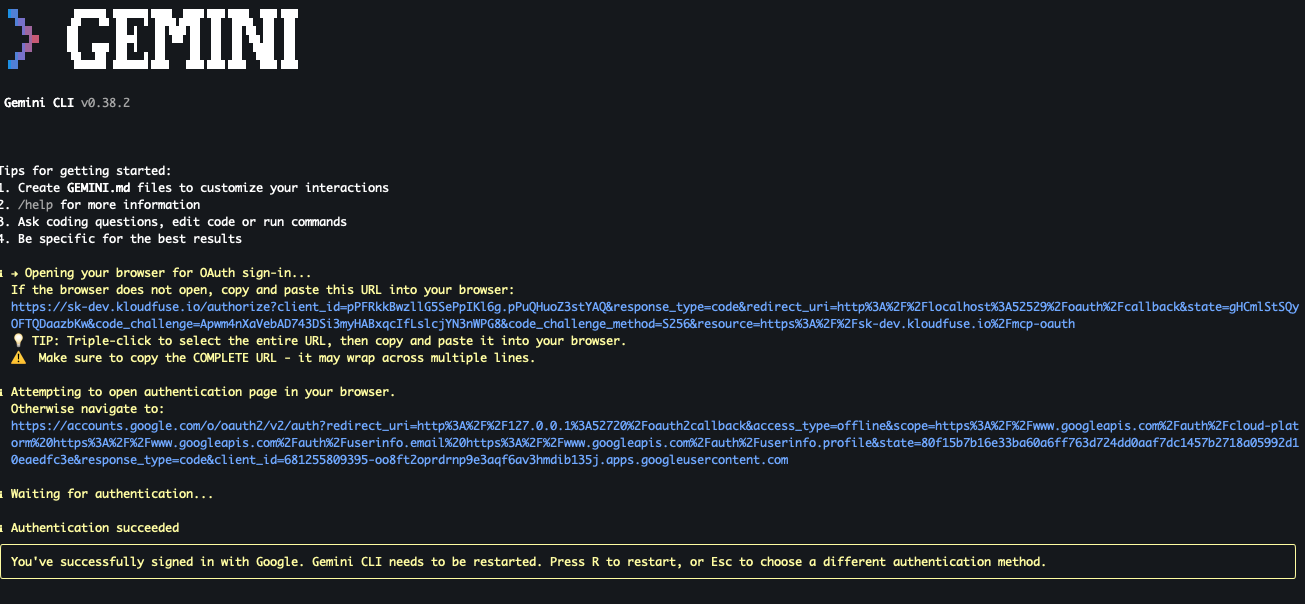
/mcp auth kfuseGemini opens a browser for SSO. On success it prints Authentication succeeded and the tokens are written to ~/.gemini/mcp-tokens.json:
Verify
In the TUI, run:
/mcpYou should see your server handle (kfuse in the example) listed as an available server. The Kloudfuse tools are now callable from the Gemini prompt.
Manage the Connector
Gemini CLI’s in-TUI commands for OAuth-backed MCP servers. Replace <handle> with the JSON key you chose in settings.json:
-
/mcp— list configured servers and their auth status. -
/mcp auth— list servers that need (re-)authentication. -
/mcp auth <handle>— re-run the SSO flow for the Kloudfuse server (use after token expiry or identity change).
Tokens live at ~/.gemini/mcp-tokens.json and are refreshed automatically while valid; delete that file if you want Gemini to forget the session and force a fresh login on next run.