Configure Cluster-Wide Defaults
The Global query priorities page is where Admin users set the cluster-wide defaults that apply when an individual user, team, or service account hasn’t configured its own value. These defaults also drive the Scheduled class — the priority and timeout used for Grafana alert evaluation, the rule manager, and scheduled views.
|
Only Admin users can change cluster-wide defaults. Non-Admin users see this page in read-only mode. |
The topics on this page:
Navigate to Global Query Priorities
-
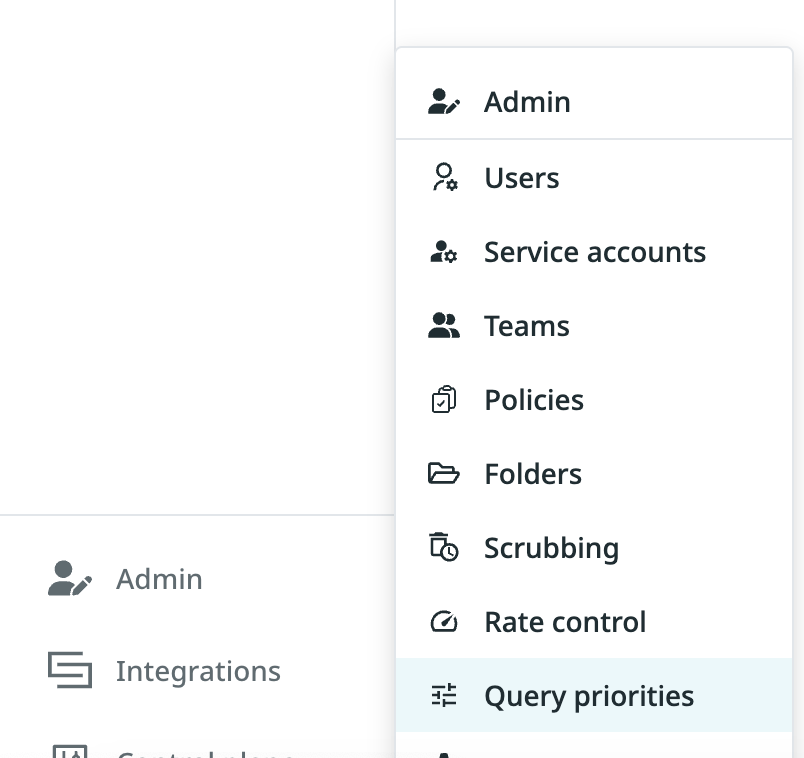
Select the Admin tab, and then Query priorities in the drop-down.
-
The Global query priorities page appears with three class blocks: Scheduled, Interactive, and Machine.
Page Layout
Each class block follows the same shape:

-
Class header — Scheduled, Interactive, or Machine. The class identifies what kind of traffic these settings apply to (see Classes).
-
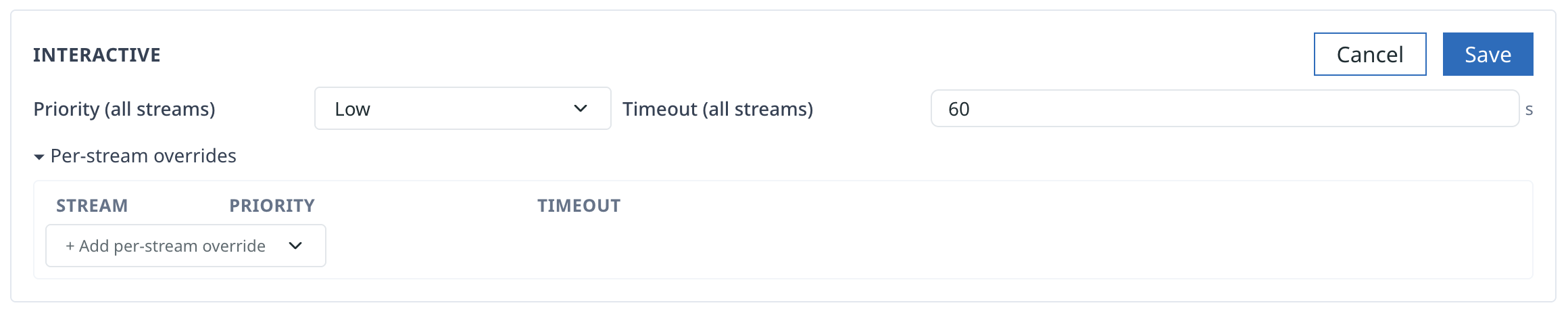
Priority (all streams) — the wildcard priority. Applied to every stream that doesn’t have its own per-stream override below.
-
Timeout (all streams) — the wildcard timeout, in seconds. Applied to every stream that doesn’t have its own override.
-
Effective column — what the resolution chain produced for the wildcard row given the current configuration.
-
Source column — which level of the chain produced the effective value (
class default (*)for the wildcard you just set, or another label if a more specific entry won). -
Per-stream overrides disclosure — expand to add a stream-specific row that overrides the wildcard.
-
Save / Cancel buttons appear at the top right of the block once you have unsaved edits.
Set the Wildcard Default for a Class
The wildcard rows govern every stream that doesn’t have its own per-stream entry. In most clusters, the wildcard rows are the only thing you need to configure.
-
On the Global query priorities page, locate the class block you want to change (Interactive or Machine; for Scheduled, see Configure the Scheduled Class below).
-
In the Priority (all streams) drop-down, pick High, Medium, or Low (or (unset / use default) to clear).

-
In the Timeout (all streams) field, enter the timeout in seconds (or leave blank to clear).
-
The Effective and Source columns update live to show what the resolution chain will produce.
-
Click Save at the top right of the class block.
-
Kloudfuse confirms the update with a toast notification.
|
Saving a wildcard change affects every user, team, and service account that inherits from this class default — that is, every entity that hasn’t set its own row. Make sure the new value is appropriate for the broadest population. |
Add a Per-Stream Override
Per-stream overrides let you tune individual telemetry streams independently from the wildcard.
-
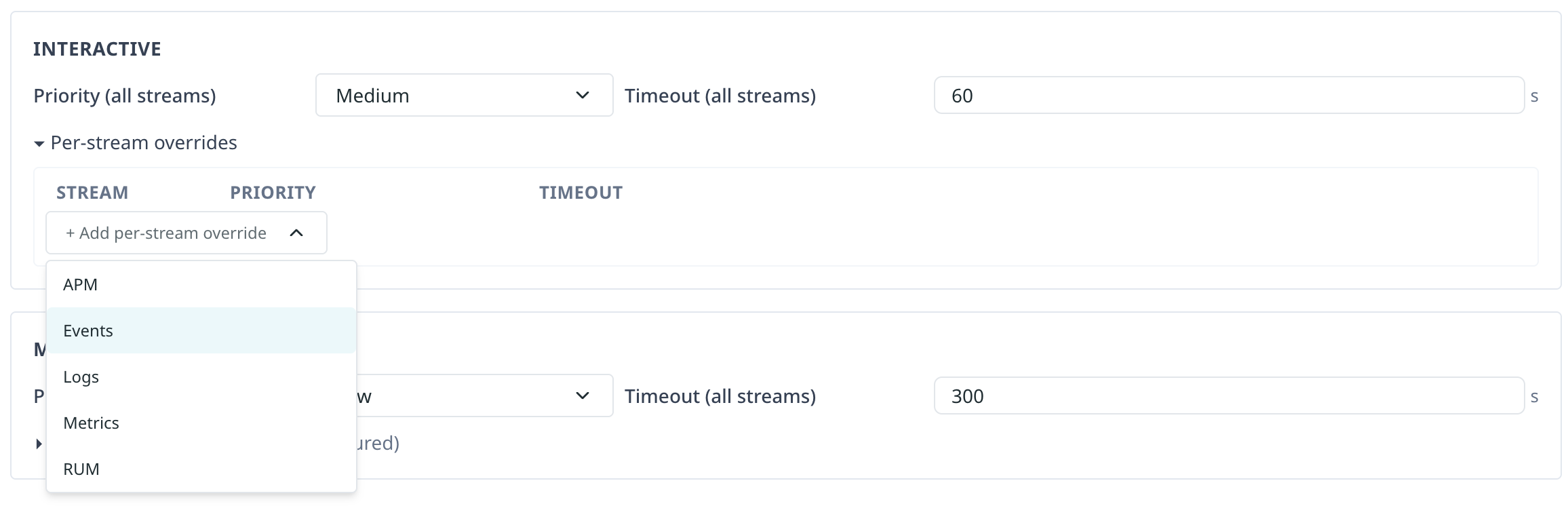
Expand the Per-stream overrides disclosure for the class.

-
Click + Add per-stream override and pick a stream from the drop-down (APM, Events, Logs, Metrics, or RUM).
-
The new row appears with default Medium priority. Adjust the Priority and Timeout fields for the stream.
-
The Effective and Source columns on this row should update to show the new stream-specific values.
-
Click Save at the top right of the class block.
|
A per-stream override fully replaces the wildcard for that one stream. If you set Priority = Low and Timeout = (unset) on the Logs row, Logs queries will run at Low priority but inherit the wildcard timeout — the per-stream entry doesn’t have to set both fields. |
Configure the Scheduled Class
The Scheduled class block looks identical to Interactive and Machine, but it controls a different population: every alert evaluation, in-process rule manager query, and scheduled-view refresh in the cluster. These workloads don’t carry user identity, so they always resolve through the Scheduled class default rather than through any per-entity policy.

We recommend keeping the Scheduled priority at High so alert evaluation and rule-manager queries aren’t starved by interactive traffic.
Remove a Per-Stream Override
-
Expand the Per-stream overrides disclosure.
-
Click the
 (×) icon on the row you want to remove.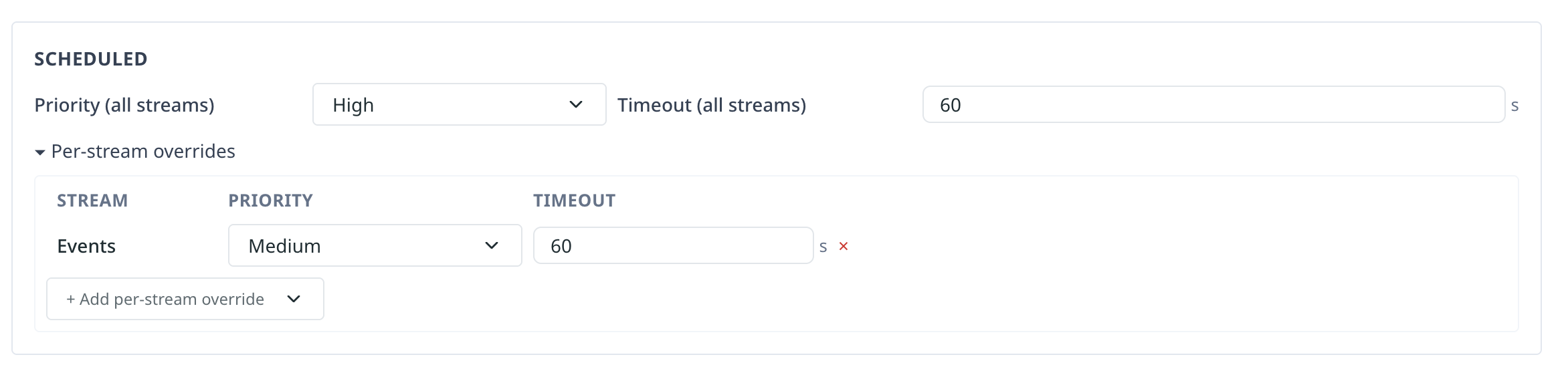
-
Click Save at the top right of the class block.
After removal, the stream falls back to the wildcard row.
Related Concepts
-
Query Priorities Concepts — what query priorities are and how the resolution chain works.
-
Override Priorities for a User, Team, or Service Account — override the cluster defaults for specific users, teams, and service accounts.
