Override Priorities for a User, Team, or Service Account
Cluster-wide defaults (see Configure Cluster-Wide Defaults) cover the common case, but you’ll occasionally need to give a specific entity a different budget — a higher priority for the oncall team, a longer timeout for a single service account that runs nightly exports, or a throttle on a user whose ad-hoc queries keep saturating the scheduler. Per-entity overrides let you do that without changing the cluster defaults.
The topics on this page:
Where to Configure What
| Entity type | Where it lives | What you can configure |
|---|---|---|
User |
Admin → Users → <user> — Query priority section. See Users below, or Manage Users for general user management. |
Interactive and Machine classes, wildcard + per-stream overrides. |
Team |
Admin → Teams → <team> — Query priority section. See Teams below, or Manage Teams for general team management. |
Interactive and Machine classes, wildcard + per-stream overrides. Apply to every member of the team. |
Service Account |
Admin → Service Accounts → <name> — Query priority section. See Service Accounts below, or Service Accounts for general service-account management. |
Machine class only, wildcard + per-stream overrides. Service accounts never run interactive traffic. |
|
The Scheduled class is system-only — it is set on the Global query priorities page and is not configurable per entity. |
Users
The user detail page exposes both the Interactive and Machine class blocks, and is the only entity type that surfaces team-inherited rows.
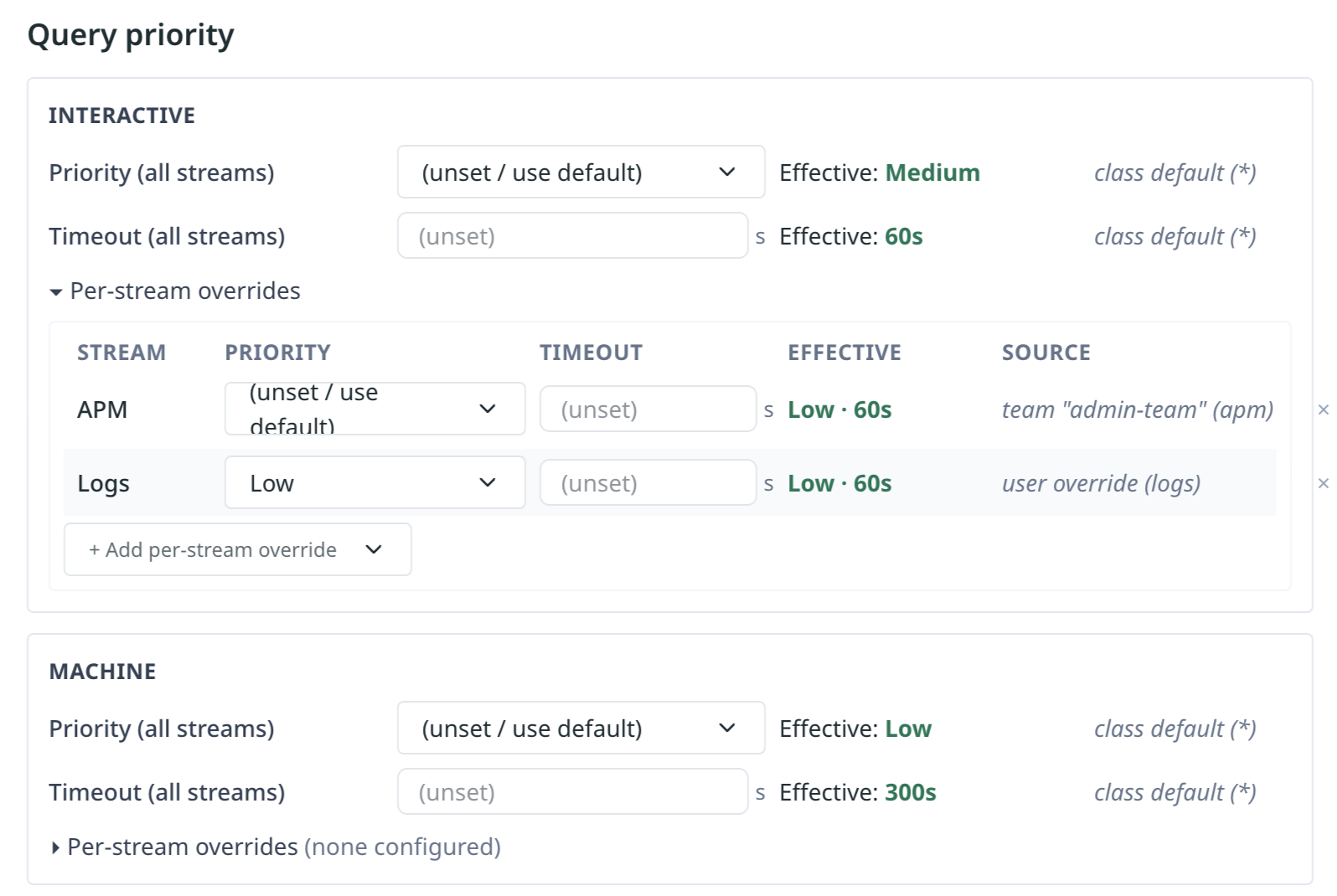
What’s specific to users:
-
Two classes are exposed. Browser traffic resolves through Interactive; bearer-token / MCP-OAuth traffic from the same user resolves through Machine.
-
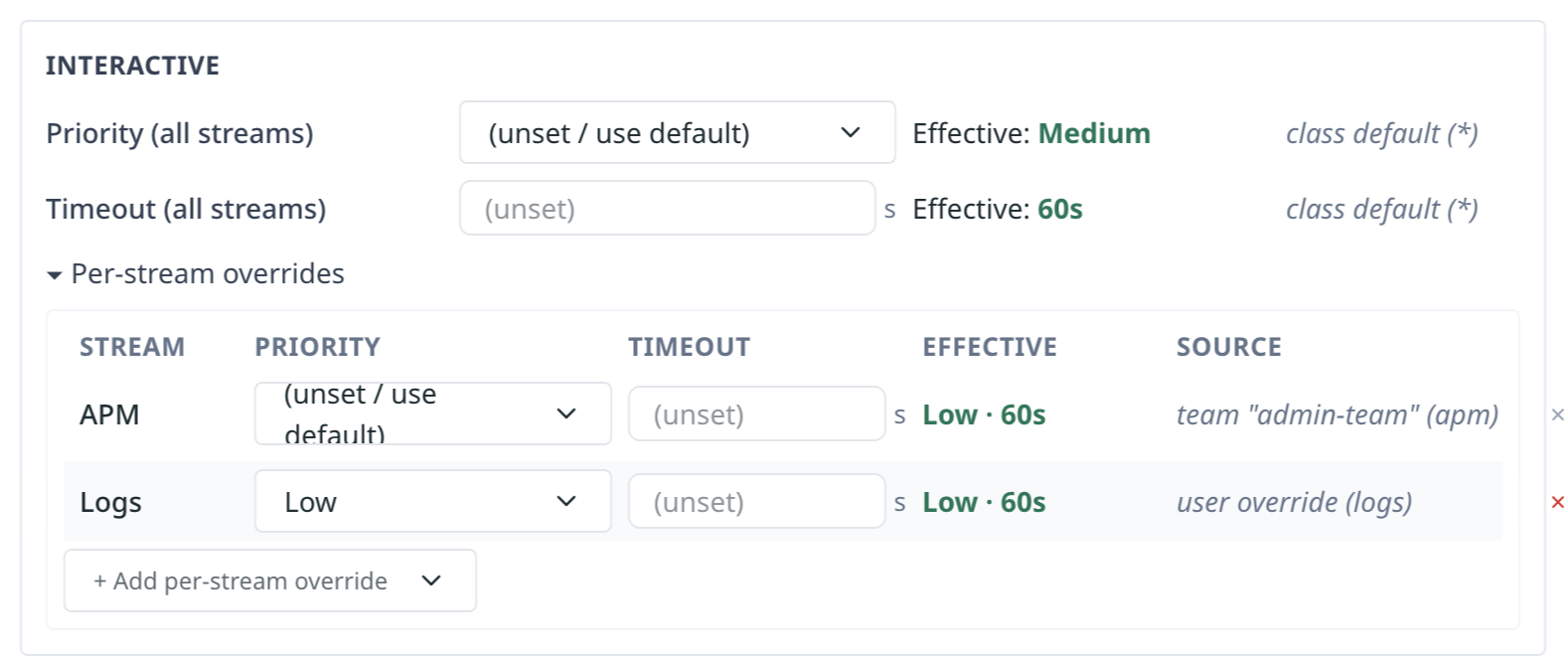
Team-inherited rows show up here. When the user belongs to a team that has its own per-stream override, the user’s Per-stream overrides table shows that row even if the user has no override of their own. Priority and Timeout read (unset), but Effective and Source reflect the team value (e.g. Low · 30s with
team "admin-team" (apm)in the Source column). Setting a value on the row creates a user override that takes precedence; clicking the × on a purely-inherited row is a no-op (edit the team instead). -
Multi-team merge rule. When the user belongs to multiple teams that supply different values for the same (class, stream), Kloudfuse picks the highest priority and the lowest timeout across the teams — most-permissive priority and strictest timeout win. The Source column names the team whose value was selected.
For the field-by-field walkthrough, see The Query Priority Section below.
Teams
The team detail page exposes both the Interactive and Machine class blocks. Whatever you configure on a team applies to every member of that team.
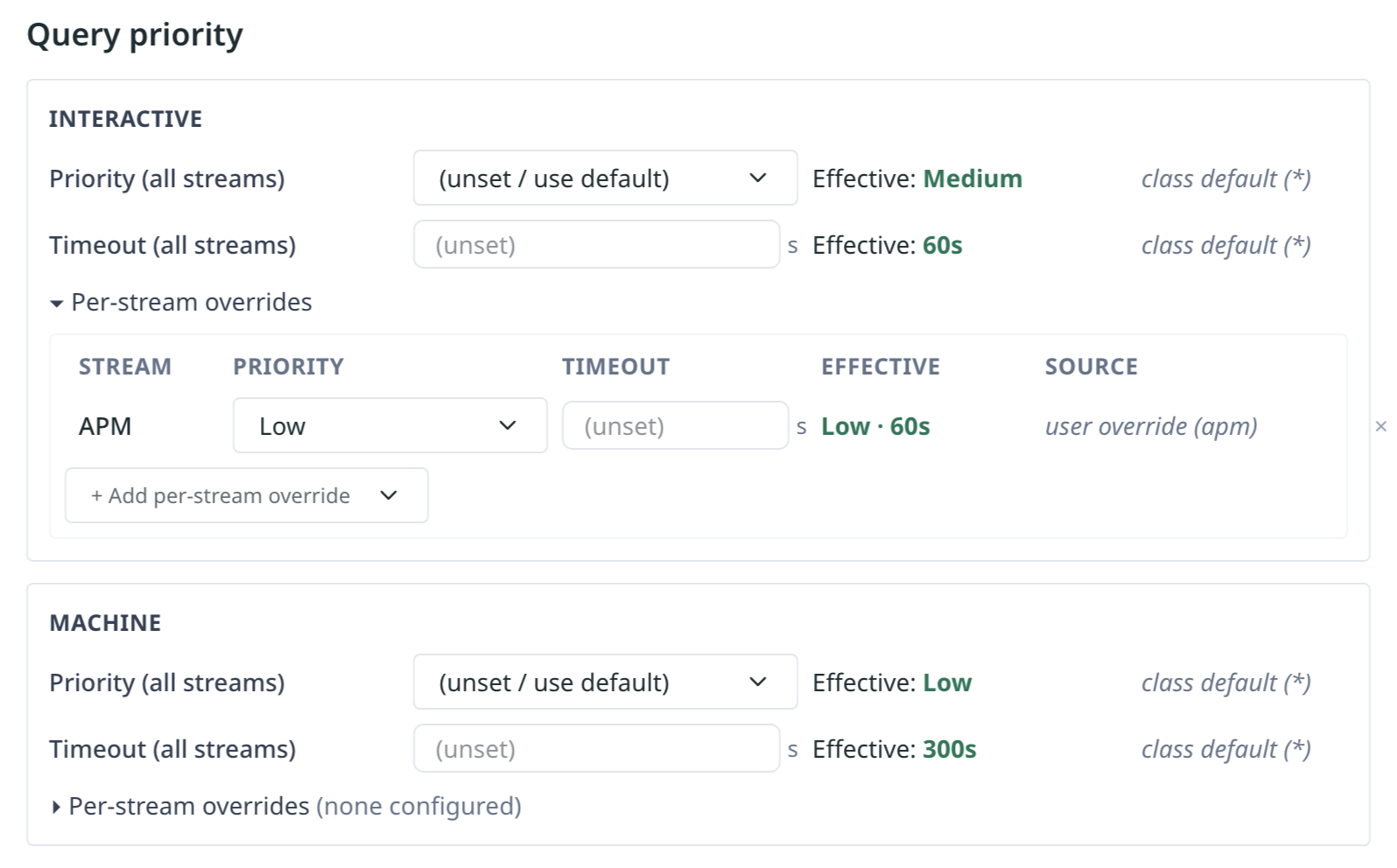
What’s specific to teams:
-
Configuration applies to every member. A Logs override on the oncall team gives every member of oncall the same Logs budget. Members can still override the team’s value on their own user detail page if they need something more specific.
-
Source label. Rows owned by the team show Source =
group override (<stream>)on the team’s own page. The same row appears asteam "<team>" (<stream>)on each member’s user detail page. -
Same shape as the user page. The Interactive and Machine blocks render exactly like the user page — wildcard rows on top, per-stream overrides under the disclosure.
For the field-by-field walkthrough, see The Query Priority Section below.
Service Accounts
The service-account detail page exposes the Machine class block only. Service accounts never run interactive traffic, so the Interactive block is intentionally absent.
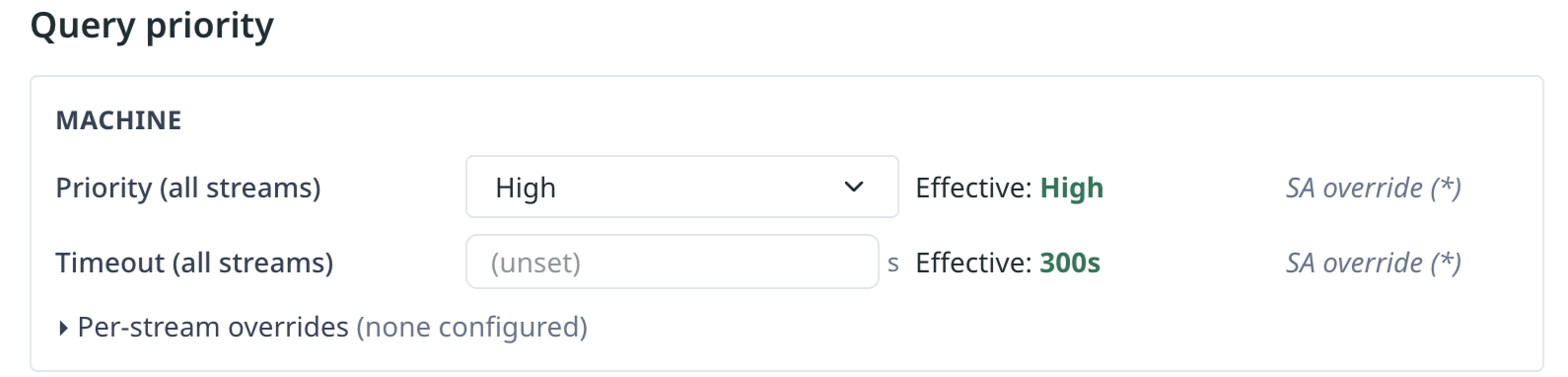
What’s specific to service accounts:
-
Machine class only. Bearer-token traffic from the service account always classifies as Machine — there is no Interactive class to configure.
-
No team inheritance. Service accounts don’t belong to teams, so their per-stream overrides table never shows team-inherited rows.
-
Source label. Rows owned by the service account show Source =
SA override (<stream>).
For the field-by-field walkthrough, see The Query Priority Section below.
The Query Priority Section
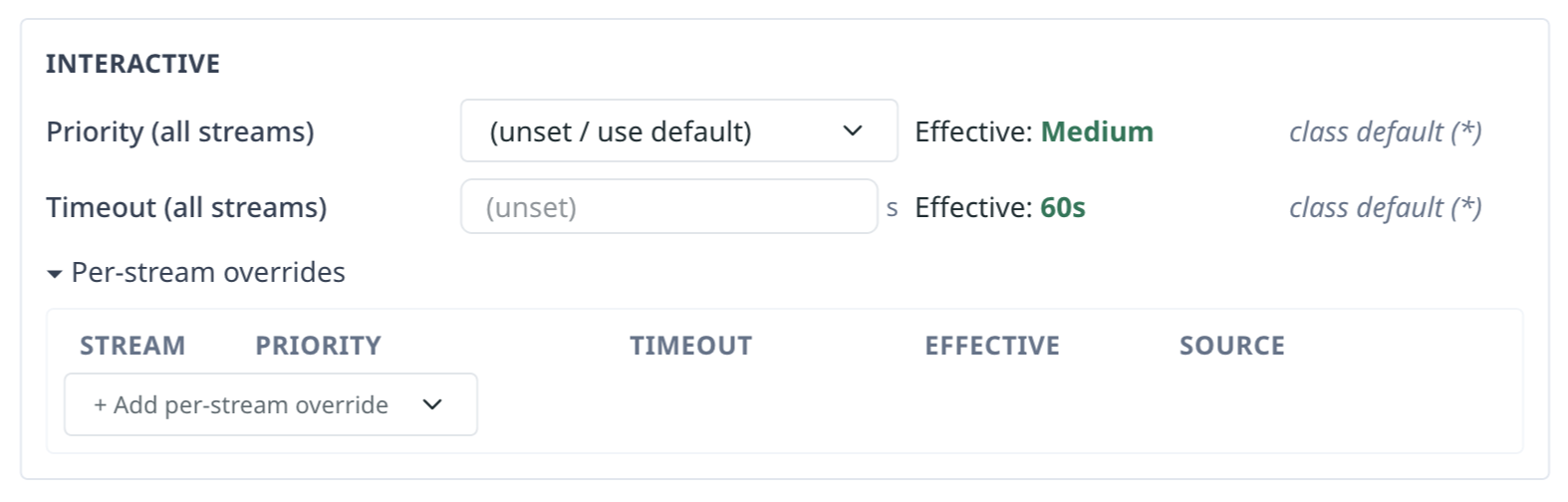
Every entity detail page exposes a Query priority section with one block per applicable class. Each block matches the layout of the Global query priorities page, with one important difference: the Effective and Source columns reflect what this entity will resolve to, including any team-inherited or class-default values that fill in fields the entity hasn’t set itself.
-
Class header — Interactive or Machine.
-
Priority (all streams) and Timeout (all streams) — the entity’s own wildcard row. (unset / use default) means "I don’t have my own value; resolve from the next level of the chain."
-
Effective — what the resolution chain produces given the entity’s own row, any inherited team rows, and the cluster default.
-
Source — which step in the chain produced the effective value. Common values:
class default (),user override (apm),group override (logs),team "oncall" (apm),SA override (). -
Per-stream overrides disclosure — surfaces stream-specific entries that override the wildcard row, including team-inherited rows for users (see Users above).
Set a Wildcard Override
The wildcard row is the most common entry point — it overrides the cluster default for every stream the entity uses.
-
Open the entity’s detail page (Admin → Users / Teams / Service Accounts → <entity>).
-
Locate the Query priority section and the class block you want to change.
-
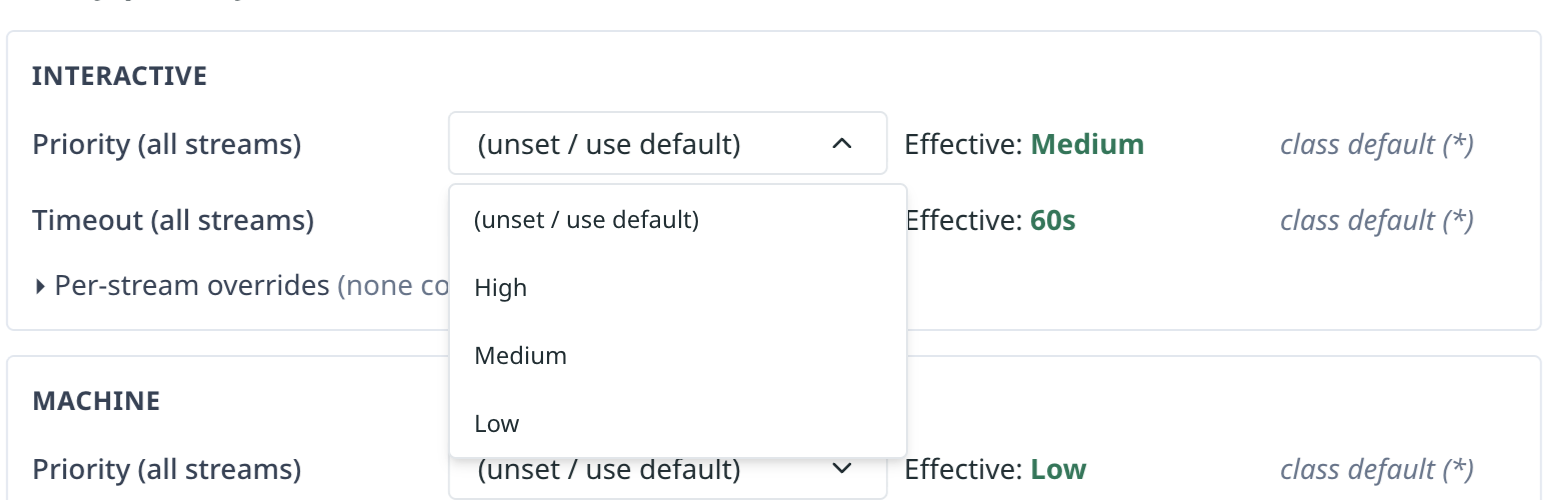
In the Priority (all streams) drop-down, pick High, Medium, Low, or (unset / use default) to clear.
-
In the Timeout (all streams) field, enter a timeout in seconds, or leave blank to clear.
-
The Effective and Source columns update live so you can see what will actually be sent to Pinot.
-
Click Save at the top right of the class block.
|
If you want this entity to use the cluster default, leave both fields (unset). (unset) is not the same as Medium / 60s — it tells the resolver to skip this level and look at the next source in the chain. |
Add a Per-Stream Override
Per-stream overrides on an entity detail page work the same as on the Global query priorities page.
-
Expand the Per-stream overrides disclosure.
-
Click + Add per-stream override and select a stream.
-
Set the Priority and Timeout for that stream. You can leave one or both blank to inherit from the wildcard or higher up the chain.
-
Click Save at the top right of the class block.
A common pattern is to set the wildcard to Medium / 60s and add a Logs override at Low / 120s — quick metrics queries stay snappy, while long-tail log scans get more headroom.
Remove an Override

Examples
Give the Oncall Team Faster Log Queries
-
Admin → Teams → oncall.
-
In the Query priority section, expand Per-stream overrides under the Interactive block.
-
Add a Logs override: Priority = High, Timeout = 120.
-
Save.
Every member of oncall now gets High priority and a 120-second budget for Logs queries, regardless of the cluster default. Other streams continue to resolve from the cluster default.
Throttle a Single Heavy-Hitter User
-
Admin → Users → noisy@example.com.
-
In the Query priority section, set Interactive Priority (all streams) to Low and Timeout (all streams) to 30.
-
Save.
This user’s interactive queries now run at Low priority and time out at 30 seconds. Other users are unaffected.
Give a Nightly-Export Service Account More Headroom
-
Admin → Service Accounts → nightly-exporter.
-
In the Machine class block, set Timeout (all streams) to 600.
-
Save.
The service account now gets a 10-minute budget for every Pinot call, while staying at the cluster-default priority. Use this pattern sparingly — large per-call budgets compete with interactive traffic when the scheduler is busy.
Related Concepts
-
Query Priorities Concepts — what query priorities are and how the resolution chain works.
-
Configure Cluster-Wide Defaults — set the cluster-wide defaults that per-entity overrides build on.
