Federation
- Overview
- Prerequisites
- Open the Federation Page
- Create a Federation on the Primary Cluster
- Allow a Secondary Cluster to Join
- Revoke an Approval
- Join the Federation from the Secondary Cluster
- Manage the Federation from the Primary
- The Federation Page on a Secondary
- Switch Between Clusters
- Remove a Secondary from the Federation
- Leave a Federation
- Disband a Federation
- Troubleshooting
- Related Topics
Federation connects two or more Kloudfuse clusters so that users move between them from a menu in the Kloudfuse interface, rather than keeping a separate bookmark or URL for each cluster. After you federate a set of clusters, a user who is signed in to one cluster switches to any other cluster in the federation in a few clicks, without signing in again.
Overview
Many organizations run more than one Kloudfuse cluster: one per region, one per environment, or one per business unit. Without federation, moving between those clusters means knowing and typing each cluster’s URL, and signing in to each one separately.
Federation solves this by establishing a trust relationship between clusters:
- Primary cluster
-
The cluster that owns the federation. You create the federation here, and you approve every other cluster that is allowed to join it. A federation has exactly one primary.
- Secondary cluster
-
A cluster that joins an existing federation. A secondary initiates the join by pointing at the primary and authenticating against it. A federation can have many secondaries.
Every cluster starts out standalone, belonging to no federation. From the Federation page, a standalone cluster takes one of two paths: create a federation and become its primary, or join an existing federation as a secondary.
| The primary’s cluster table labels the secondaries as Member, while a secondary’s own page reports its role as Secondary. Both labels describe the same thing: a cluster that joined a federation it does not own. |
Once the clusters are connected, the federation appears to users as a cluster menu in the Kloudfuse interface. Membership is managed by administrators; individual users do not join or configure anything.
| Federation controls navigation between clusters, not data. Each cluster continues to store and query its own telemetry, and a user’s permissions on a cluster are still governed by that cluster’s roles and policies. See Role-Based Access Control. |
Prerequisites
Before you set up a federation, confirm the following:
- Administrator on every cluster
-
You must have the Admin role on the primary cluster and on each secondary you intend to join. The join is performed by an administrator on the secondary authenticating as an administrator on the primary, so both roles are required. See Manually Assigning User Roles.
- A shared SSO provider
-
All clusters in the federation must authenticate against the same SSO endpoint. The join flow signs you in to the primary using the primary’s own SSO, so your identity must resolve on both clusters. See Kloudfuse Authentication and the warning below.
- Federation enabled in the deployment
-
Federation is provided by the platform’s authentication service and is enabled as part of your Kloudfuse deployment. If the Federation option does not appear under the Admin menu, or the interface reports that federation is unavailable, contact Kloudfuse support to have it enabled for your clusters.
- Reachable cluster hostnames
-
Each cluster must be reachable at a stable, resolvable DNS hostname over HTTPS. Note the hostname of every cluster you plan to federate before you begin.
- Global
orgIdanddnsNameset on every cluster -
Every cluster in the federation must set
orgIdanddnsNameunderglobal:in itscustom_values.yaml. Federation identifies clusters by these two values, and they populate the Org ID and DNS name columns in the cluster table. If either value is missing, the cluster cannot register with the primary, and switching to it does not work.global: orgId: <your organization name> dnsName: <your kloudfuse domain name>yamldnsNamemust be the cluster’s real domain, written exactly as the cluster is served. Federation checks the configured value against the actual domain, so a cluster reached atdev.kloudfuse.iomust setdnsName: dev.kloudfuse.io. If either value is missing or wrong, add or correct it and upgrade the cluster before you set up the federation. See Install Using Helm and Upgrade Kloudfuse.
|
Confirm that every cluster uses the same SSO provider before you join. Federation is supported only in that configuration. A join between clusters with different providers can still appear to succeed, which makes a mismatch easy to miss. The administrator performing the join often already holds a valid session with both providers, so the browser supplies whichever cookie each cluster asks for and the flow completes normally. That result does not generalize to your users. Anyone who is not enrolled with both providers cannot reach the other clusters, so the federation looks broken to them even though it worked for the administrator who set it up. Verify the SSO endpoint on each cluster rather than treating a successful join as confirmation. |
Open the Federation Page
Every federation task starts from the same page, on whichever cluster you are configuring.
-
Sign in to the cluster as an administrator.
-
Click the Admin tab, and then the Federation option in the drop-down menu.
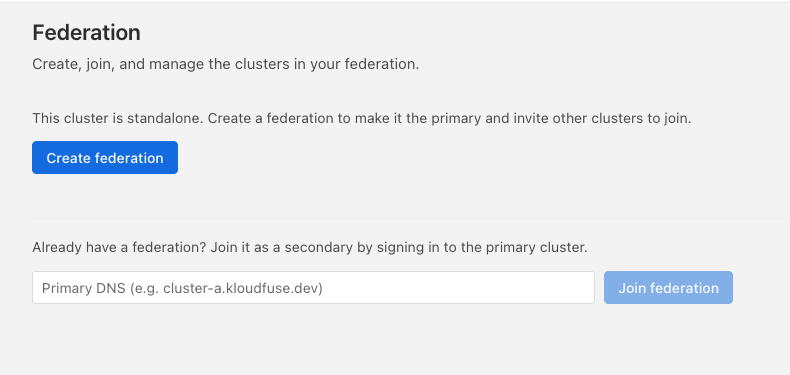
On a cluster that does not yet belong to a federation, the page offers the two paths described in Overview:
- Create federation
-
Makes this cluster the primary of a new federation, and lets you invite other clusters to join. Continue with Create a Federation on the Primary Cluster.
- Join federation
-
Attaches this cluster to a federation that already exists, as a secondary. Enter the primary’s DNS name in the Primary DNS field. Continue with Join the Federation from the Secondary Cluster.
Decide which cluster is the primary before you begin. Create the federation there first, because a secondary cannot join a federation that does not exist yet.
Create a Federation on the Primary Cluster
Do this once per federation, on the cluster you want to act as the primary.
-
On the primary’s Federation page, click Create federation.
-
The page reloads as the primary view: a Federation clusters table that currently lists only this cluster, and an Allowed secondary clusters card for inviting others.
The primary now owns a federation with one member — itself. Next, allow the secondary clusters that may join it.
Allow a Secondary Cluster to Join
A secondary can only join while the primary is holding an open approval for that secondary’s DNS host. This allow list is what prevents an unknown cluster from joining your federation, so add each host deliberately.
-
On the primary’s Federation page, find the Allowed secondary clusters card.
-
Type the secondary’s DNS host into the Secondary DNS host field.
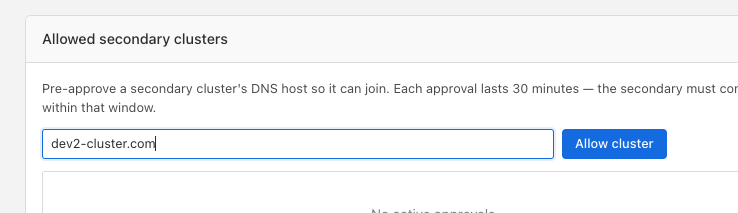
Enter the host only — for example
dev2-cluster.com. Do not include a scheme, a port, a path, or a wildcard. An entry such ashttps://dev2-cluster.com/is rejected. -
Click Allow cluster.
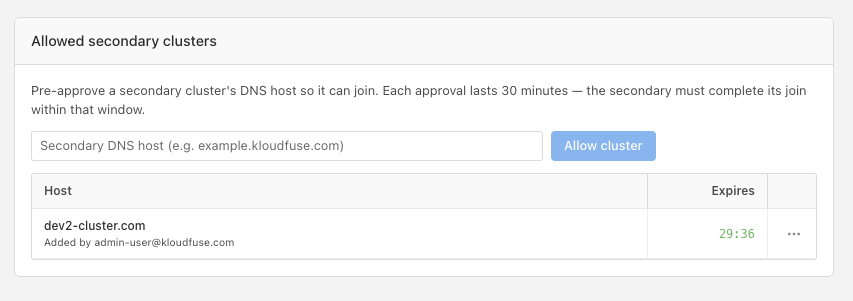
The host appears in the approvals table, showing who added it and a countdown to its expiry.
-
Repeat for each secondary you want to join.
|
An approval stays open for 30 minutes and then expires automatically. Complete the join from the secondary while the countdown is still running. If the window expires before you finish, add the host again on the primary to reopen it. Adding a host that is already approved restarts the 30-minute approval window. |
| Allow a secondary immediately before you join it, rather than approving every cluster up front. The approval only needs to be open during the join itself — once a secondary has joined, it stays connected without a standing approval, and the approvals table returns to No active approvals. |
Revoke an Approval
If you typed the wrong host, or you no longer want a cluster to join, revoke the approval rather than waiting for it to expire.
-
In the Allowed secondary clusters table, click the … menu at the end of the row.
-
Click Revoke.
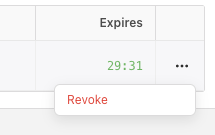
The approval is removed immediately, and a join attempt from that host is refused. Revoking an approval does not affect clusters that have already joined — to detach one of those, see Remove a Secondary from the Federation.
Join the Federation from the Secondary Cluster
Perform these steps on the secondary cluster, in a browser session where you are signed in as an administrator. The primary must be holding an open approval for this cluster’s host, as described in Allow a Secondary Cluster to Join.
-
Sign in to the secondary cluster as an administrator.
-
Click the Admin tab, and then the Federation option in the drop-down menu.
-
In the Primary DNS field, enter the DNS name of the primary cluster — for example
prod.kloudfuse.io. -
Click Join federation.
Kloudfuse redirects your browser to the primary cluster’s sign-in page.
-
Sign in with the SSO provider configured on the primary cluster, and approve the sign-in if that provider prompts you.
This step is the primary confirming who you are. Because the primary checks that you hold the Admin role there, an administrator on the secondary alone cannot join a federation they do not administer.
-
Kloudfuse returns you to the secondary, which is now connected to the federation.
Repeat this procedure on each secondary cluster.
Manage the Federation from the Primary
After a secondary joins, the primary’s Federation page becomes the management view for the whole federation.
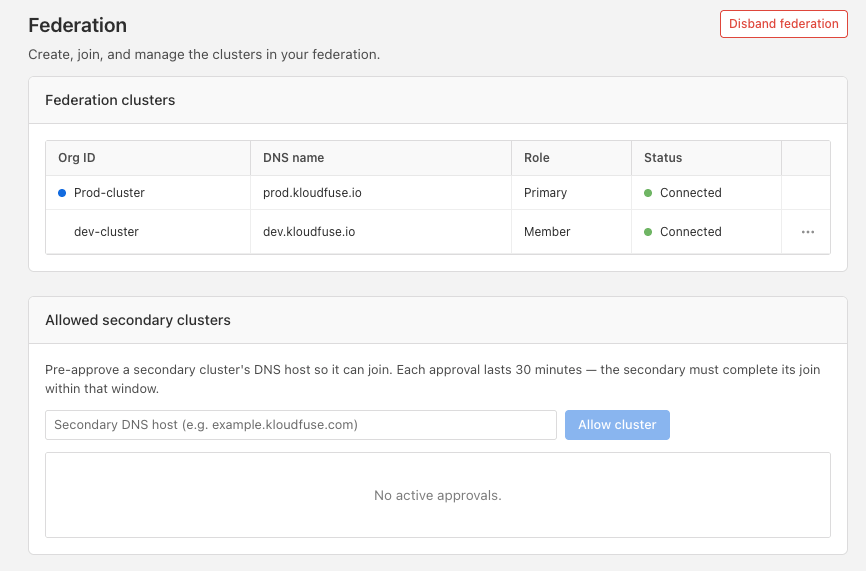
The Federation clusters table lists every cluster in the federation:
- Org ID
-
The cluster’s name. A dot marks the cluster you are currently viewing.
- DNS name
-
The host the cluster is reached at.
- Role
-
Primary for the cluster that owns the federation, Member for each secondary that joined it.
- Status
-
Connected while the primary’s heartbeat reaches the cluster, Disconnected when it does not.
The primary heartbeats each member on an interval rather than on demand, so Status can trail reality by up to one interval. A cluster that has just come back up keeps showing Disconnected until the next heartbeat reaches it, then returns to Connected on its own. A brief Disconnected after a restart or a network blip needs no action.
The Allowed secondary clusters card below the table stays available, so you can invite more clusters at any time. It reads No active approvals whenever no approval window is open.
The Federation Page on a Secondary
A secondary’s Federation page is a read-only view of the federation it belongs to, plus the control for leaving.
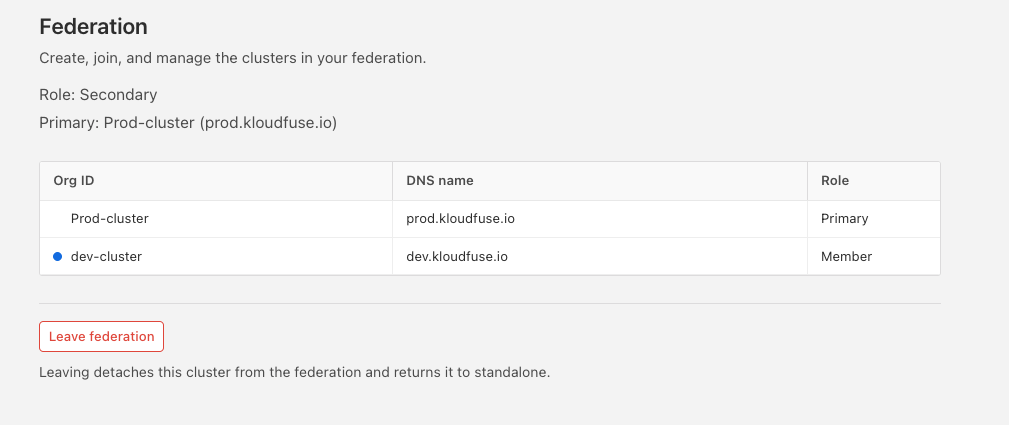
The page reports Role: Secondary and names the primary it is attached to. Its cluster table lists the same members as the primary’s, without the status column, and marks the cluster you are currently viewing.
A secondary cannot allow other clusters to join, remove another member, or disband the federation. Those actions belong to the primary.
Switch Between Clusters
Once clusters are federated, switching is available to users, not just administrators.
-
Locate the cluster picker in the upper-right corner of the Kloudfuse interface, next to the Admin menu. It shows the name of the cluster you are currently viewing.
-
Click the picker to open the cluster menu.
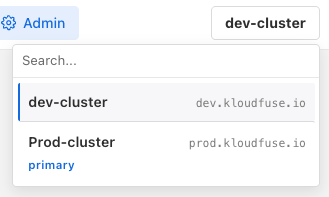
The menu lists each cluster in the federation with its DNS name, highlights the cluster you are on, and tags the primary. Use the search box to filter the list when the federation is large.
-
Select another cluster in the federation.
Kloudfuse opens that cluster. Your session carries over through the shared SSO provider, so you are not prompted to sign in again.
| The menu lists the clusters in the federation that the signed-in user is entitled to reach. Two users on the same cluster can therefore see different lists, according to their access on the other clusters. |
Remove a Secondary from the Federation
An administrator on the primary detaches a secondary that should no longer be federated.
-
On the primary’s Federation page, find the secondary’s row in the Federation clusters table.
-
Click the … menu at the end of the row.
-
Click Remove.
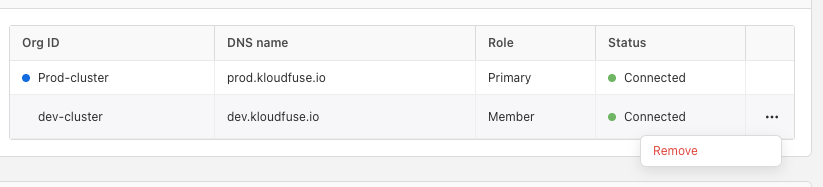
The secondary returns to standalone. Its users lose it from their cluster menus, and it no longer appears in the primary’s table. The cluster’s own telemetry and configuration are untouched.
To bring the cluster back later, allow its host again on the primary and repeat the join, as described in Allow a Secondary Cluster to Join and Join the Federation from the Secondary Cluster.
Leave a Federation
A secondary can also detach itself, without involving the primary.
-
On the secondary’s Federation page, click Leave federation.
Leaving detaches this cluster from the federation and returns it to standalone. As with Remove a Secondary from the Federation, the cluster keeps its own data and configuration, and can rejoin later through a fresh approval and join.
Disband a Federation
Disbanding dissolves the whole federation from the primary.
-
On the primary’s Federation page, click Disband federation in the upper-right corner.
Every member is detached and the primary returns to standalone, so the cluster menu disappears for all users on all of the clusters involved.
| Disbanding affects every cluster in the federation, not just the primary. To detach a single secondary, use Remove a Secondary from the Federation instead. |
Troubleshooting
- The join fails and reports that the cluster is not approved
-
The 30-minute approval on the primary expired, was revoked, or was never opened for this host. On the primary, add the secondary’s host again, then retry the join promptly. Confirm that the host you approved matches the secondary exactly.
- The host is rejected when you add it
-
The allow list accepts a bare DNS host or IP address only. Remove any
https://prefix, trailing path, port number, wildcard, or stray spaces, and add it again. - The join redirects to the primary but sign-in fails
-
Your account must resolve on the primary cluster through the shared SSO provider, and must hold the Admin role there. Confirm both clusters use the same SSO endpoint, and check your role on the primary. See Manually Assigning User Roles.
- A cluster cannot register with the primary, or cannot be switched to
-
Every cluster in the federation must set
orgIdanddnsNameunderglobal:in itscustom_values.yaml. Federation identifies clusters by these two values, and they populate the Org ID and DNS name columns in the cluster table, so a cluster missing either one cannot register or appear as a switch target.global: orgId: <your organization name> dnsName: <your kloudfuse domain name>yamldnsNamemust be the cluster’s real domain, written exactly as the cluster is served. Federation checks the configured value against the actual domain, so a cluster reached atdev.kloudfuse.iomust setdnsName: dev.kloudfuse.io. A value that is abbreviated, stale, or a different subdomain fails that check even though the cluster is running normally.Add or correct the value and upgrade the cluster. See Prerequisites, Install Using Helm, and Upgrade Kloudfuse.
- The Federation option does not appear, or the page reports federation is unavailable
-
Federation is not enabled in this deployment, or its supporting service is not reachable. Contact Kloudfuse support.
- A cluster shows a status other than Connected
-
The primary’s heartbeat is not reaching that member. If the cluster is coming back up, wait for the next heartbeat before investigating. Otherwise, confirm the member’s DNS name still resolves and the cluster is running. If Disconnected persists, remove the member and repeat the join.
- A user does not see the cluster picker, or the menu is missing a cluster
-
Confirm the secondary completed its join, and that the user’s identity resolves on the cluster that is missing from their menu. The menu only lists clusters the signed-in user can reach.