Notification Routing Preview
Choosing a contact point on an alert is a request, not a guarantee. The notification routing preview shows where the alert actually delivers, and explains anything that stands in the way.
Why routing needs a preview
When you choose a contact point on an alert, Kloudfuse does not attach that contact point to the rule directly. It records your choice as a label on the rule. Choosing the contact point oncall-slack puts the label oncall-slack = "true" on the alert.
Delivery is decided separately, by the notification policy tree. Each contact point normally has a policy that matches its own label, but a policy can carry additional matchers, can stop evaluation before later policies are reached, and can be muted on a schedule.
The result is that the contact point you selected and the contact point that receives the alert are not always the same. The routing preview walks the policy tree for you and reports what it finds.
There are two ways an alert can reach a contact point:
- Policy-tree routing
-
The alert carries contact point labels, and the notification policy tree decides delivery. This is what the Kloudfuse alert editor creates. An alert can reach several contact points this way.
- Simplified routing
-
The alert names a single receiver on the rule itself. That receiver is notified directly and the policy tree is not consulted. See Simplified routing.
Where the preview appears
The routing preview appears on four screens.
| Screen | What it shows |
|---|---|
Alert editor |
A strip below the contact point selector, in the Add contacts step. See Read the routing preview strip. |
Alert details, properties |
A View policy tree link beside the contact point badges. See Open the routing detail. |
Alert details, instances |
A Routes to column naming the contact points for each individual instance. See Read the Routes to column. |
Alerts list |
A warning icon before the name of any alert with a routing problem. See Spot problems from the alerts list. |
Read the routing preview strip
When you create or edit an alert, open the Add contacts step. A strip appears below the contact point selector.
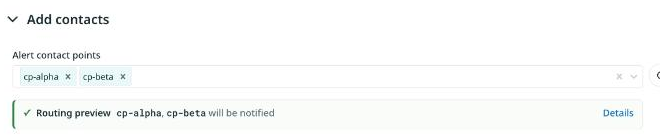
The strip states one verdict, then explains anything that qualifies it. Click Details to open the full analysis.
Verdicts
| Verdict | Meaning |
|---|---|
|
A policy chosen for this alert delivers to each of them. |
|
Some deliveries are certain. Others turn on a label that only exists once the alert fires. |
|
Nothing in the policy tree matches this alert. |
|
No policy chosen for this alert matched. The alert fell through to the fallback contact point at the root of the tree. |
|
The alert uses simplified routing. |
Warnings
Below the verdict, the strip adds one row for each problem it finds.
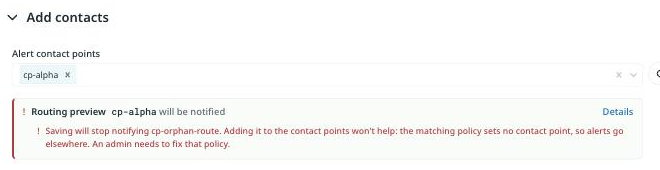
The warnings you may see:
-
This alert selects no contact points, so it only reaches whichever policy matches its other labels. -
No notification policy routes to <contact point>, so it is not notified. An admin needs to add one. -
<contact points> matches but an earlier policy stops evaluation first. Turn on continue matching on that policy to reach it too. -
<contact points> only fires for instances whose labels match the policy -
<contact points> has an active mute timing -
<contact point> is notified twice. -
Saving will stop notifying <contact point>.
| Do not read an absent strip as a clean bill of health. Among other reasons, it is hidden while the policy tree is loading and when the tree cannot be read. |
Alerts with a warning threshold
An alert that has a warning threshold is saved as two rules. The warning half becomes a separate rule, named with a [Warning] suffix, carrying its own contact point labels and its own routing.
The editor therefore shows two strips. The strip below the main selector describes the main alert. A second strip, headed Warning routing preview, sits below the warning contact selector and describes the warning alert. The two can disagree.
If you leave the warning contact empty, the warning alert falls back to the main alert’s contact points, and the warning strip reports that same delivery.
Open the routing detail
Click Details on the strip, or View policy tree on the alert details page, to open the Notification routing panel.
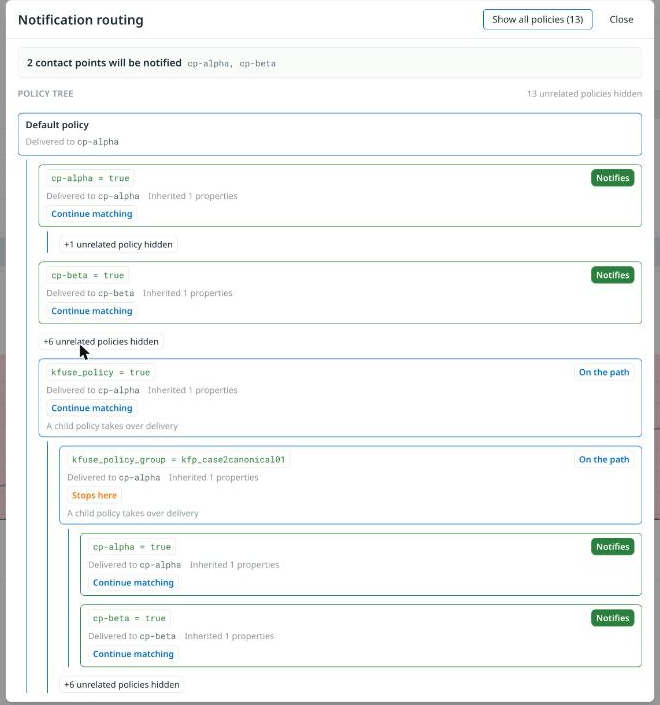
Receivers
A headline states the outcome, as N contact points will be notified, N certain · M conditional, or No policy matches. When nothing is unusual, the panel lists the contact point names. When something needs explaining, it expands to one row per contact point, each carrying a badge and a detail line such as Via 2 policies.
| Badge | Meaning |
|---|---|
|
Delivery depends on a label the alert carries only once it fires. |
|
The policy names no contact point of its own, so it uses its parent’s. |
|
A real notification for this instance was sent here. |
|
The policy tree routes here, but nothing has been sent. |
|
A silence is suppressing the notification. |
|
The policy matched, but an earlier policy stopped evaluation first. |
|
Alerts are being delivered here, but the policy tree does not route to it. |
If every delivery came from the root of the tree rather than a policy chosen for the alert, the panel says so: No policy matches these labels. The default policy is catching this alert, so it goes to the fallback contact point rather than one chosen for it.
Policy tree
The tree is shown as an indented list, rooted at Default policy. Each policy shows its matchers as chips, along with a status badge and its delivery settings.
| Status | Meaning |
|---|---|
|
This policy delivers for this alert. |
|
Delivery depends on a label known only when the alert fires. |
|
The policy matches, but an earlier policy stopped evaluation. |
|
The policy can never run. For example, a matcher whose label name contains stray whitespace. |
|
The matchers do not fit this alert. |
|
The tree was not consulted, because the alert names its contact point directly. |
|
Not a delivery point, but an ancestor of one. |
Policies that cannot affect this alert are collapsed into a single badge. Click Show all policies to expand them.
| A policy blocked by an earlier one takes no part in the route, so it has no delivery status of its own. Kloudfuse still evaluates that branch separately, so it can tell you which contact points the alert lost. |
Read the Routes to column
On the alert details page, open the Instances tab. The Routes to column names the contact points for each individual instance.

Hover over a name to see what its state means.
| Tooltip | Meaning |
|---|---|
|
The notification was really sent. |
|
Expected, but not sent. |
|
A prediction for an instance that is not firing. |
|
Delivery to a contact point the tree does not name. |
A cell shows a dash when there is no analysis, and No policy matches when nothing routes. A silenced instance adds a line naming the silence.
| The policy tree is read once when the page opens. If a contact point is reported as one the tree does not route to, reload the page before acting on it, in case the tree changed in the meantime. |
Click any cell to open the routing detail for that one instance. In that view, a Resolve for selector lets you switch between the prediction from the alert alone and the result for a specific instance. Because a real instance carries its full set of labels, most conditional answers become definite.
Spot problems from the alerts list
An alert with a routing problem carries a warning icon before its name in the alerts list. Hover over the icon to see the problems.
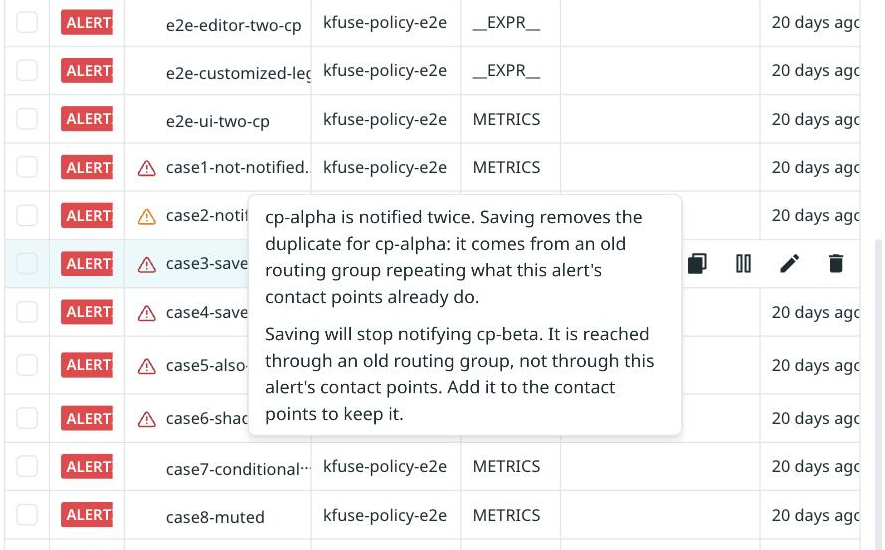
The tooltip states the problem and whether a notification is being lost.
Simplified routing
An alert can name a single receiver on the rule itself. That receiver is notified directly, and the notification policy tree is not consulted.
For an alert using simplified routing:
-
The receiver appears as an ordinary contact point badge.
-
The strip verdict names it as notified directly, bypassing the policy tree.
-
The details page link reads View routing instead of View policy tree.
-
The policy tree panel reads
Not consulted — the rule names its contact point directly.
Simplified routing names exactly one receiver, so Kloudfuse can preserve it only while that receiver is the only contact point selected. If you change the selection in any way, by adding a second contact point or by removing this one, saving the alert drops the setting and the alert falls back to policy-tree routing.
| No confirmation is shown when this happens. The only indication is the routing preview strip, whose verdict stops naming the contact point as notified directly and starts describing policy-tree delivery. |
| The Kloudfuse alert editor cannot turn simplified routing on. Alerts that use it must be provisioned through the Grafana API. |
Alerts created before 4.3.0
Selecting more than one contact point used to make Kloudfuse write an extra per-alert group into the notification policy tree. It no longer does. Alerts saved from 4.3.0 onward route only through the ordinary contact point policies.
An alert last saved before this change may still carry the retired labels. Saving it removes them, which can stop notifying a contact point that was reachable only through the old group.
| Opening and saving an older alert that uses several contact points can change where it delivers. The routing preview warns you before you save, names the affected contact points, and tells you whether adding them to the contact point list will fix it. |
| Situation | Behavior |
|---|---|
Saving an alert |
The retired labels are removed automatically. No administrator action is needed. |
Restoring an older version |
The retired labels are removed, so a restore cannot re-enroll the alert in an old group. |
Importing an older export |
The retired labels are removed, so an import cannot recreate a group that does not exist on this cluster. |
Leftover policies |
Retired groups that no alert references are removed from the policy tree when a contact point is saved. |
Permissions |
Saving an alert with several contact points no longer writes to the policy tree, so folder-level edit permission is now enough. |
Limitations
What the preview can know
-
A policy that depends on a label carried only by the alert’s data can be reported only as conditional. Evidence from firing instances can rule such a policy out, but never confirm it. Setting the label on the alert itself makes it decidable.
-
Confidence changes as instances come and go, because the evidence comes from instances firing at that moment. The same alert can read as conditional when nothing is firing and resolve cleanly when something is.
What the preview does not show
-
An active time interval on a policy is not reported. The
only notified duringline can appear only for simplified routing. -
Only the delivering policy’s own mute timings are reported. A mute timing set on a parent policy is not.
-
An instance suppressed by an inhibition rule looks the same as one that is not.
-
Silences are identified by their identifier rather than by name.