Provider Connections
Connect your AI provider accounts so that Kloudfuse can show the cost and usage they report in Provider Cost & Usage. Connections are managed by administrators on the Integrations tab of Admin > AI Integrations.
Create a credential key
Kloudfuse needs a credential key to encrypt the provider keys you connect. The chart doesn’t create this key, so that an upgrade can’t replace it.
-
Create the secret:
kubectl -n kfuse create secret generic agent-query-service-credential-key \
  --from-literal=credential-key="$(openssl rand -base64 32)"
bash -
Add it to your
custom-values.yamlfile:agent-query-service: credentialKey: secretName: agent-query-service-credential-keyyaml -
Run the upgrade command:
helm upgrade --install kfuse oci://us-east1-docker.pkg.dev/mvp-demo-301906/kfuse-helm/kfuse \ -n kfuse \ --version <VERSION> \ (1) -f custom-values.yamlbash1 Replace <VERSION>with a valid Kloudfuse release value. See Release Notes for the latest release.
| Back up this key. If you lose it, stored provider keys can’t be recovered, and you must connect each provider again. |
Connect a provider
-
Go to Admin > AI Integrations.
-
Select Connect provider.
-
Select the provider, give the connection a name, and enter its key.
-
Select Connect.
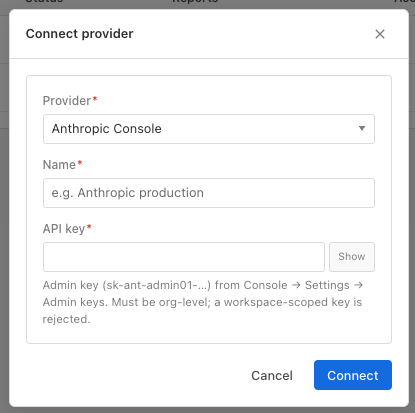
Each provider requires a specific type of key, and an ordinary inference API key does not work:
| Provider | Key to use |
|---|---|
Anthropic Console |
An org-level Admin key ( |
Anthropic Enterprise |
An Analytics key from claude.ai > Organization settings > API. The primary owner creates it, with the |
OpenAI |
An Admin key ( |
Google Gemini |
The full service account JSON key file from Google Cloud. See Google Gemini. An AI Studio API key does not work here. |
LiteLLM proxy |
The proxy’s master key or a proxy-admin key, plus its base URL. Other keys report only their own user’s spend. The proxy needs a database to track spend, and your deployment must allow its base URL. Reports daily totals. |
OpenRouter |
A Management key from OpenRouter > Settings > Management Keys. Reports daily totals for the last 30 days. |
Google Gemini
Google has no admin API for usage or cost, so Kloudfuse reads Google Cloud directly with your service account:
- Usage
-
Read from Cloud Monitoring, for AI Studio and Vertex AI. Grant the service account
roles/monitoring.vieweron the monitoring project. Cloud Monitoring keeps these metrics for six weeks. - Cost
-
Read from the Cloud Billing standard usage cost export to BigQuery, which a billing administrator enables. Enter the export table in the connection, then grant
roles/bigquery.dataVieweron the dataset androles/bigquery.jobUseron the table’s project. Without a table, the connection reports usage only.
Manage connections
The Usage & cost table lists each connection with its provider, status, what it reports, account, and when it was last verified.
From a connection’s menu, you can select one of the following:
-
Verify connection checks the key again and updates what the connection reports.
-
Delete connection removes the stored key, and cost reporting from that connection stops.
The page also lists LLM judges, which are model connections used for evaluations and report no usage or cost.