Manage Groups
This section discusses topics related to managing groups of users in Kloudfuse.
|
Groups must have unique names. |
The topics include:
Navigate to Groups
To manage groups, follow these steps:
-
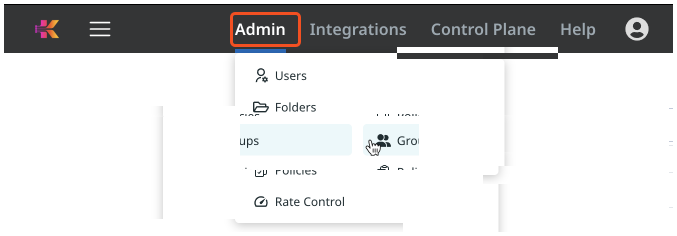
Select the Admin tab, and then the Groups option in the drop-down menu.
-
The Groups interface appears.
Using the Groups Interface
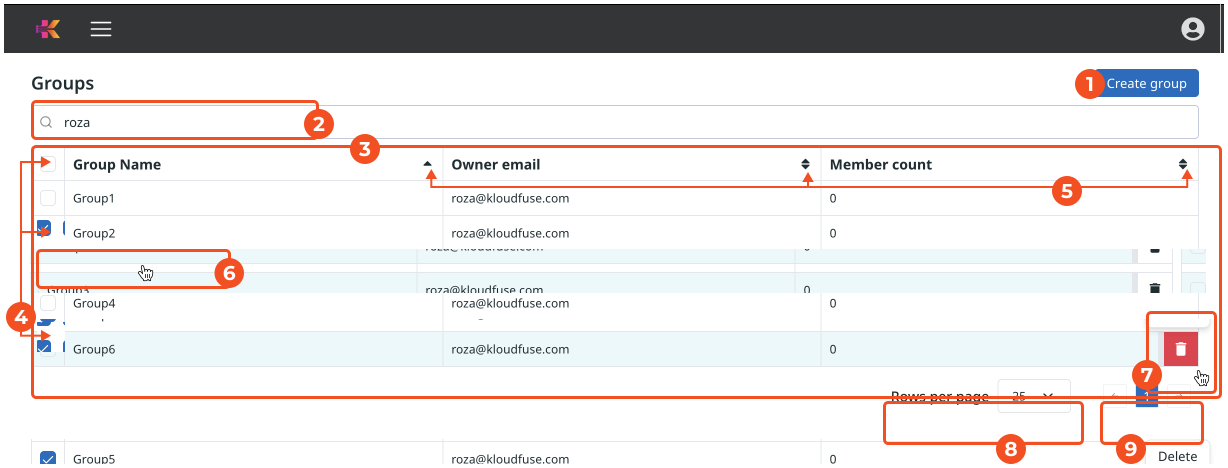
The Groups interface has the following information and affordances:
-
Create group button to create a new folder. See Create a Group.
-
Search bar to locate specific groups, by Group name or Owner email.
-
List of existing Groups.
-
Bulk and individual action selectors.
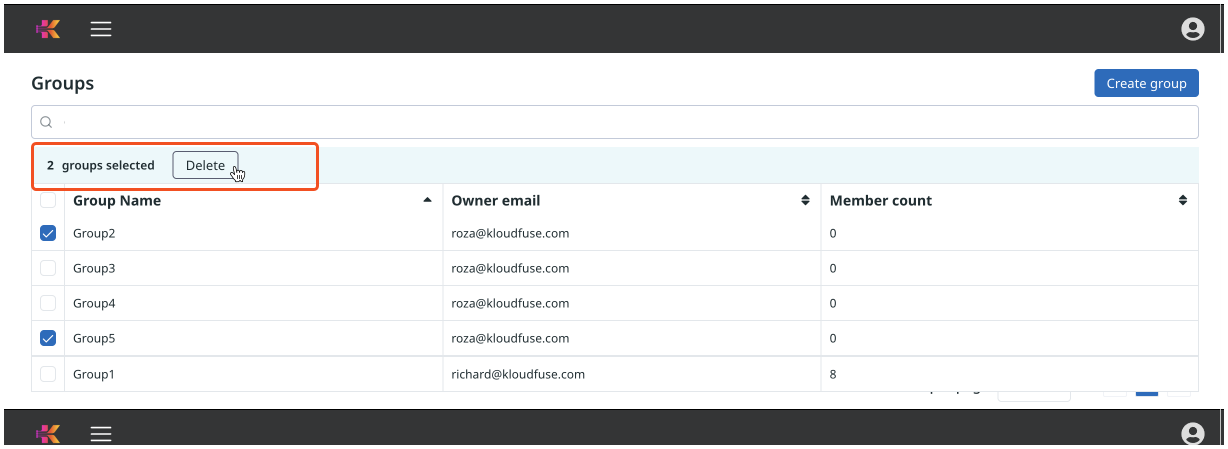
When you select several or all groups in the list, Kloudfuse displays a bulk Delete option. See Delete a Group.
-
Sort for the group list, on Group name, Owner email, or Member count (group size).
-
Hover over the group you plan to Change, and click its name; Edit group details appears.
Use this to make changes to the owner email, to add group members and configure their permissions, specify group policies, and review effective policies.
-
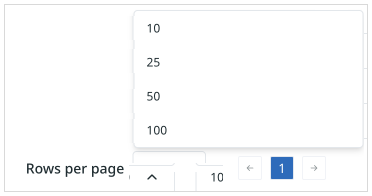
Specify the number of rows you can see on each page.
-
Navigate across pages by clicking individual page numbers, or
 (forward) and
  (backward) arrows.
Create a Group
|
Only Admin users can create new groups. |
Follow these steps to create a new group of users:
-
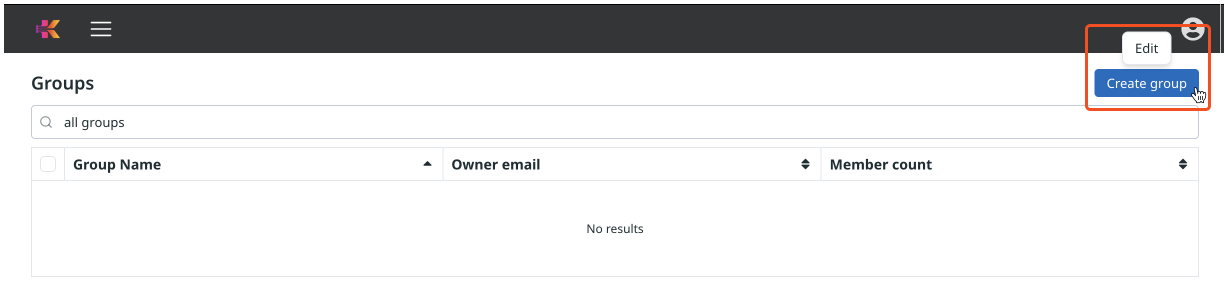
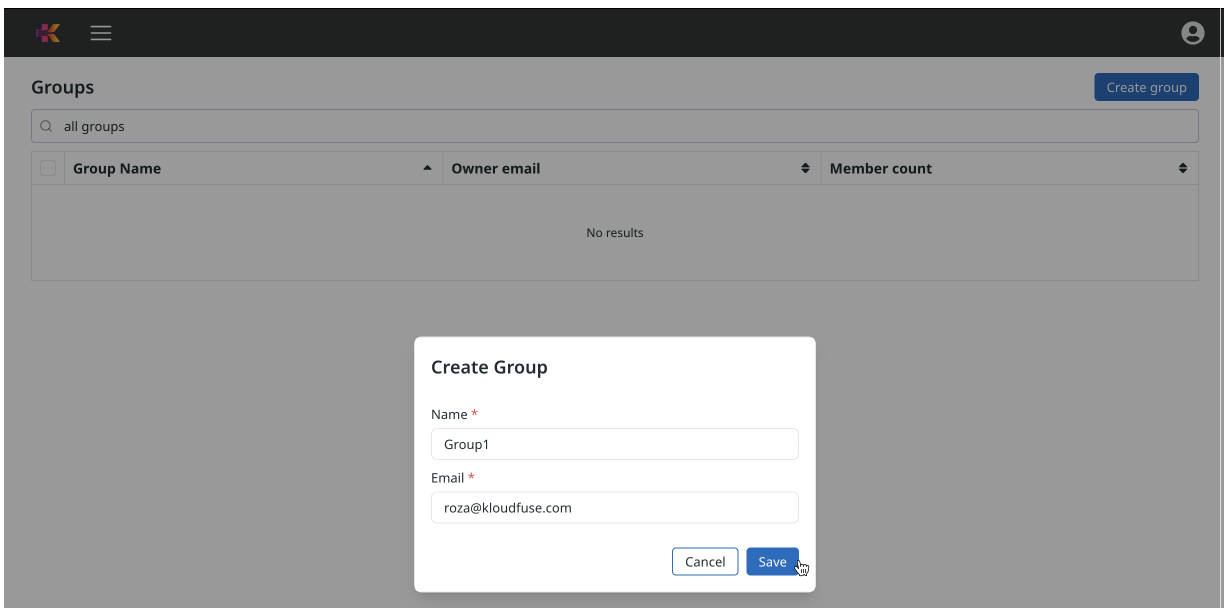
Click the Create group button at the top of the page.
-
The Create Group interface appears.
-
In the Create Group interface, enter the Name of the group, and Email for the group owner/administrator.
Here, we create a group named Group1.
-
Click
 (Save).
 -
Kloudfuse notifies you that you successfully added a new group.
The new group now appears in the Groups interface.
Find a Group
In large organizations, it may be hard to find an existing group. Kloudfuse enables you to find groups through our Search function.
-
In Groups, click the Search bar.
-
Start typing the key word, and Kloudfuse automatically filters the list of potential matches.
Change Group Owner
When you create a new Group, you must specify the owner by providing their email; see Create group.
To change the group ownership, follow these steps:
-
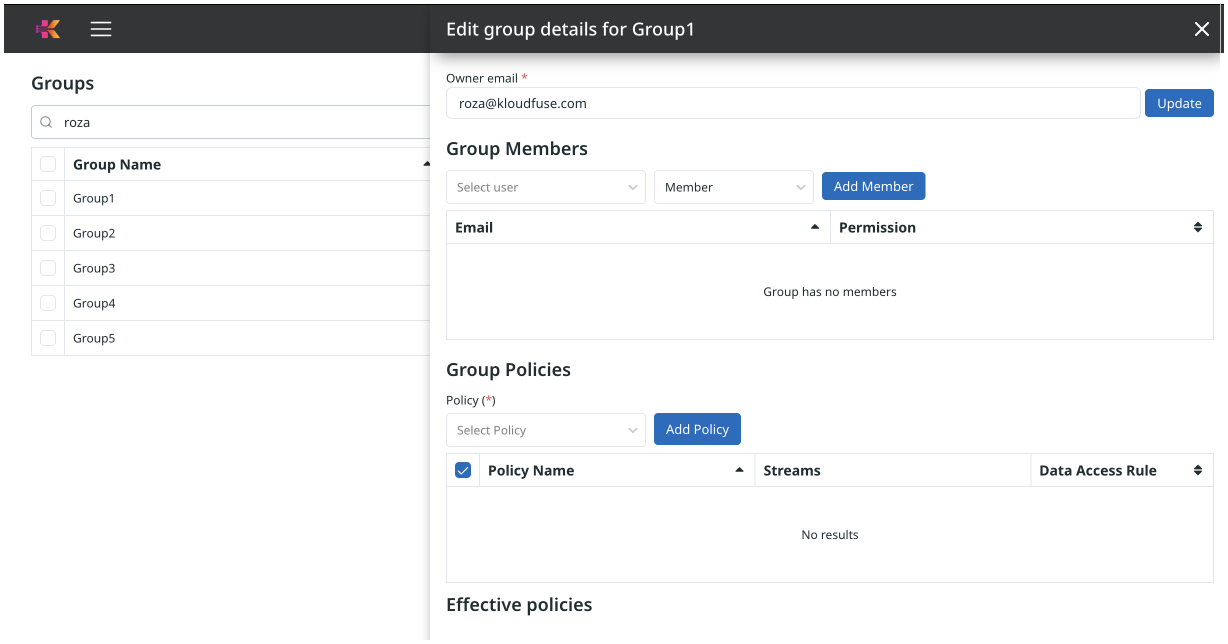
Hover over the group you plan to Change, and click its name; Edit group details appears.
-
Click into the Owner email field.

-
Change the Owner email. Here, we changed from
roza@kloudfuse.comtorichard@kloudfuse.com. -
Click Update.

Add Group Members
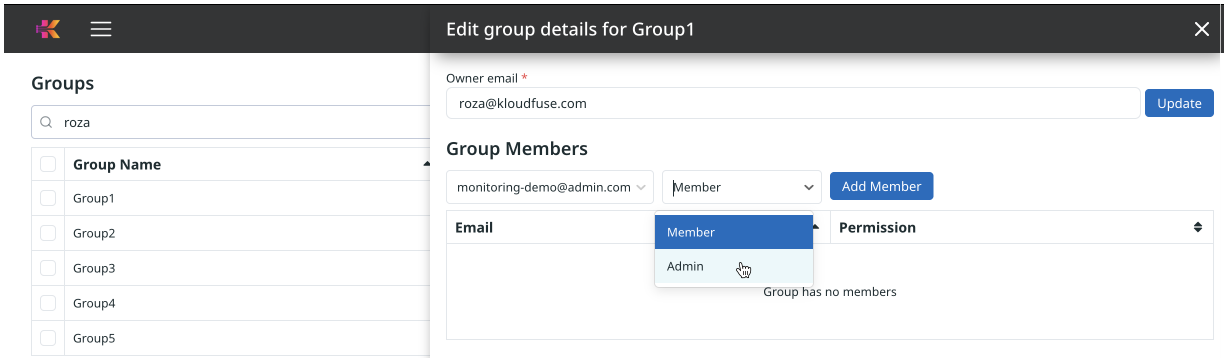
Group members can have one of two roles within the group:
To assign members to a group, follow these steps:
-
Hover over the group you plan to Change, and click its name; Edit group details appears.
-
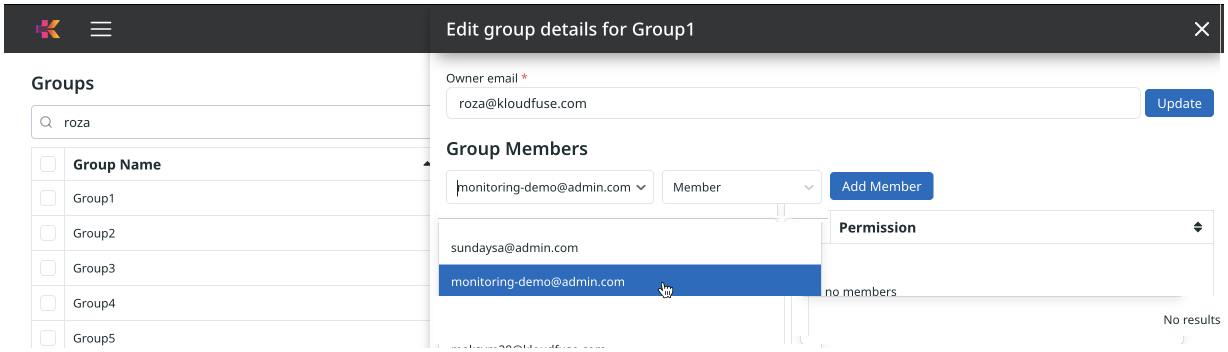
In the Group Members section, use the Select user drop-down to find a user within your organization.
-
In the second drop-down, select the member’s permission level within the group.
-
Click
 (Add Member).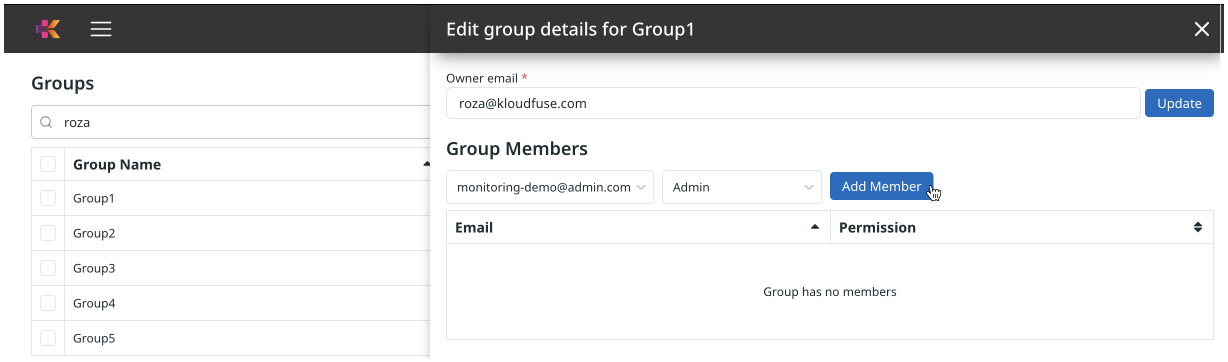
-
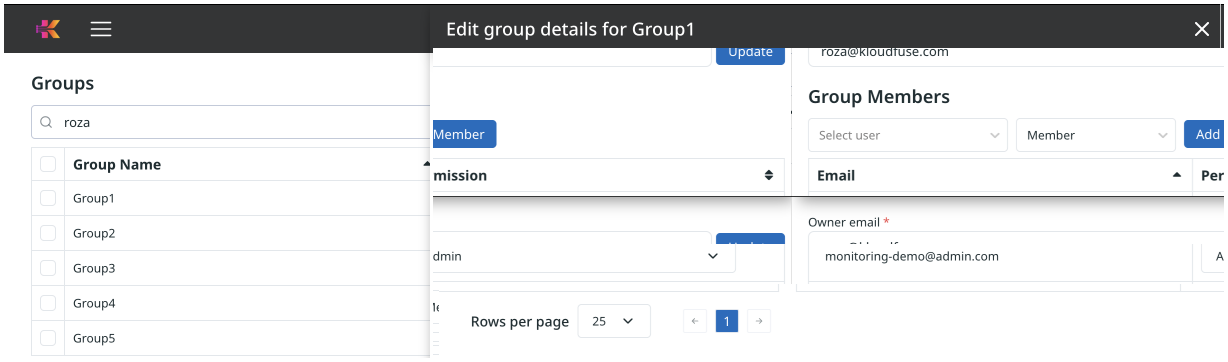
The new group member’s information, Email and Permission, appears in the list of Group Members.
-
Proceed to add more users to the group.
Change a Member’s Permissions
Occasionally, you may have to change a group member’s permission. Follow these steps:
-
Hover over the group you plan to Change, and click its name; Edit group details appears.
-
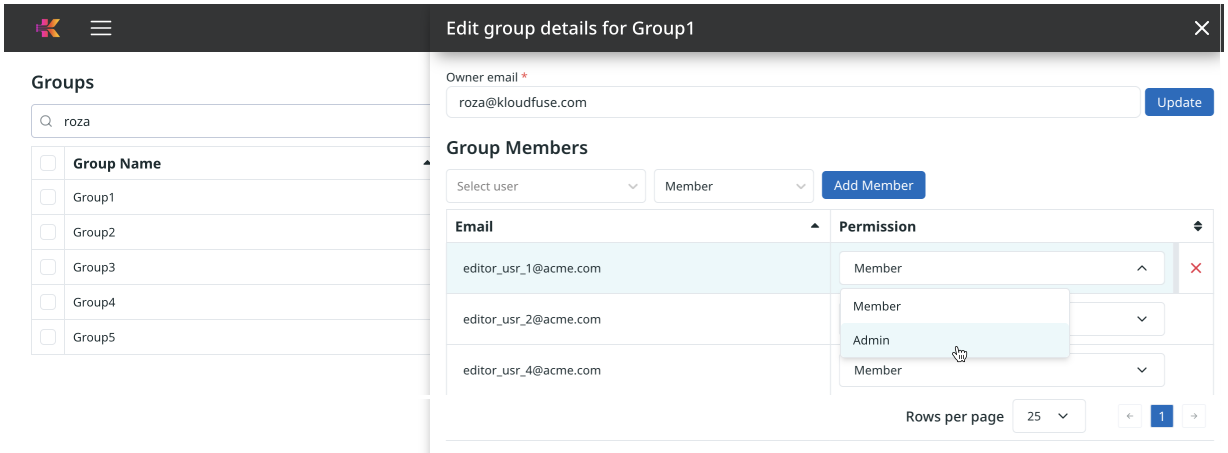
Select the row for the member where you plan to change the permission.
-
In the Permission drop down, select the necessary alternative, and click it.
-
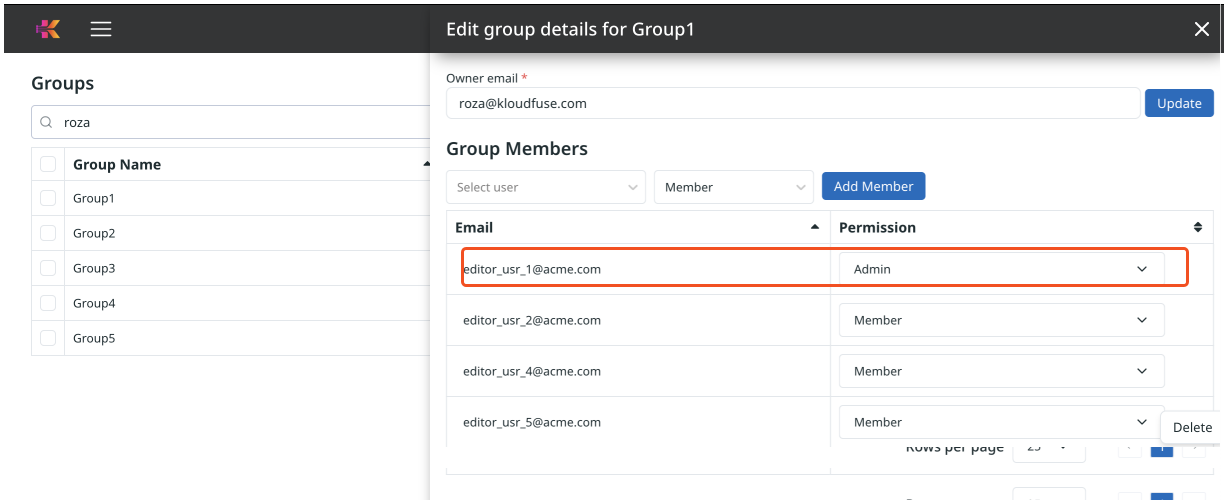
The new permission level appears in the list of group members.
Delete a Group Member
To remove a member from a group, follow these steps:
-
Hover over the group you plan to Change, and click its name; Edit group details appears.
-
Hover over the member you plan to delete.
-
Click the
 (Delete) icon.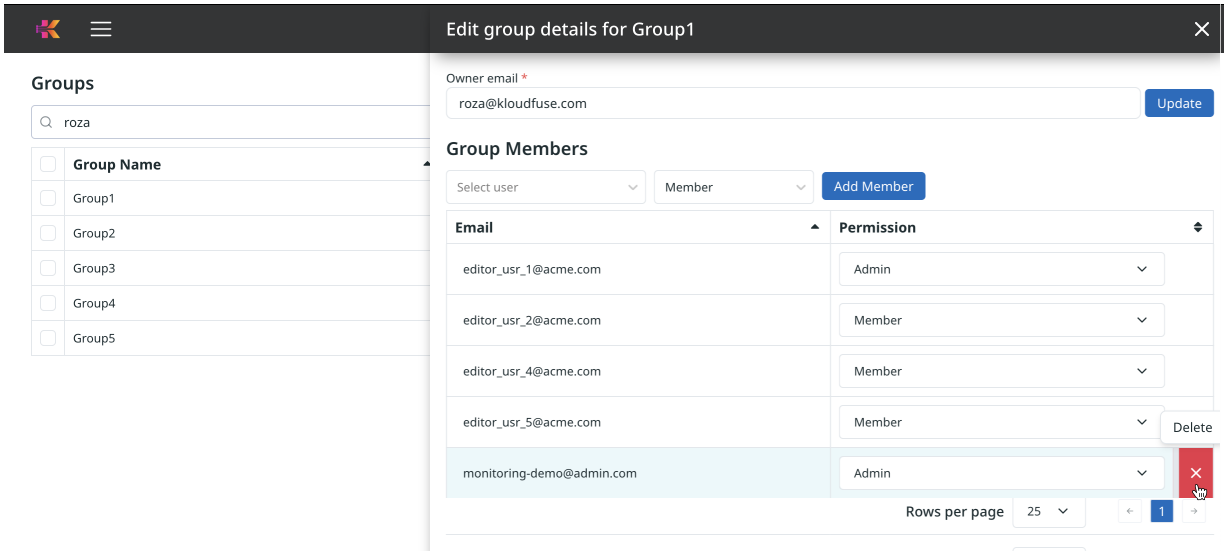
-
Kloudfuse confirms that the member is no longer in the group.
Set Group Policies
To set policies for the group, follow these steps:
-
Hover over the group you plan to Change, and click its name; Edit group details appears.
-
Scroll down to Group Policies.
-
In the drop-down, select a policy that you plan to add to the group.
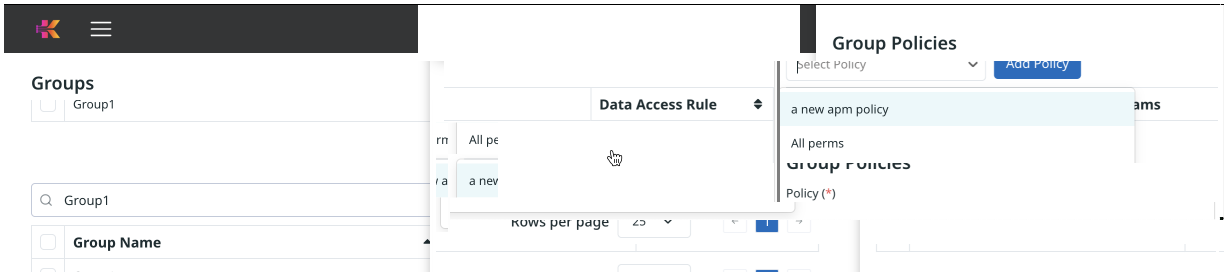
-
Click
 (Add policy).
 -
The new policy is now part of the group.
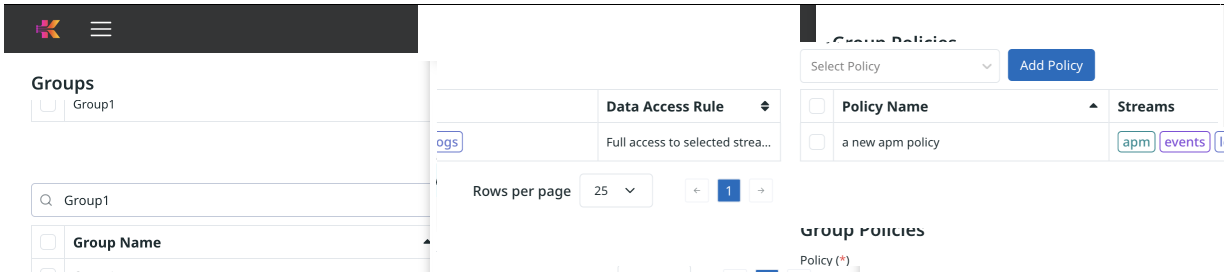
-
Add more policies to the group.
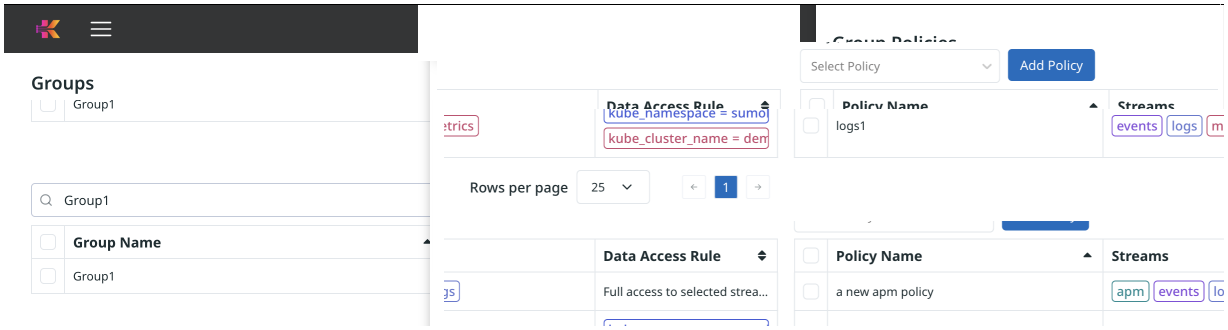
Delete Group Policies
To delete policies that no longer apply to a group, follow these steps:
-
Hover over the group you plan to Change, and click its name; Edit group details appears.
-
Under Group Policies, hover over the policy you plan to delete.
-
When the
 (trashcan) icon appears, click it.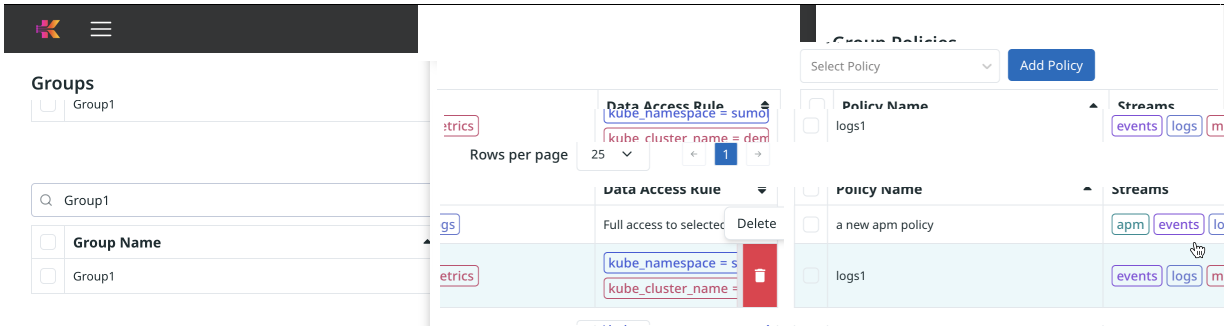
-
Kloudfuse confirms that the policy has been deleted.
Review Effective Policies
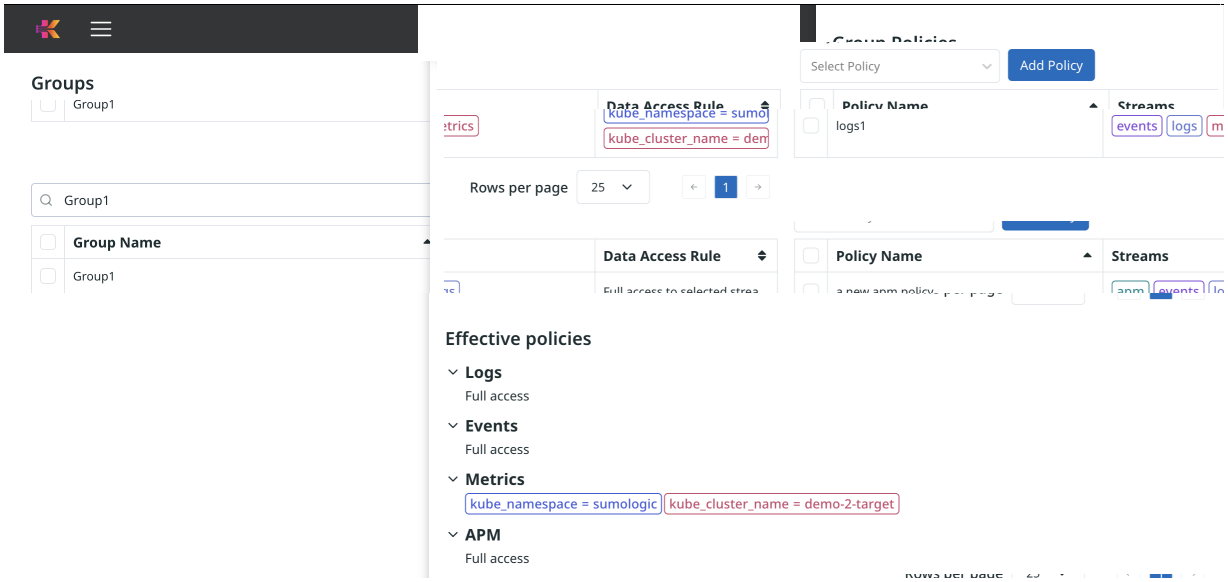
Whenever you apply more than one Policy to a Group, the combination of permissions may not be intuitive.
Kloudfuse displays the effective policies for a group within the Group detail interface.
-
Hover over the group you plan to Change, and click its name; Edit group details appears.
-
Scroll down to Effective Policies.
-
Notice that Kloudfuse specifies policies at the level of each stream type.
Delete a Group
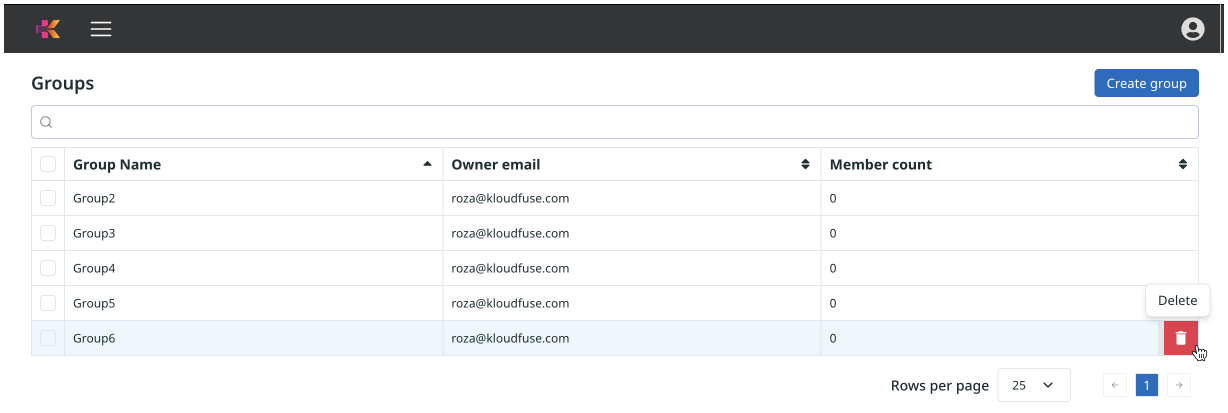
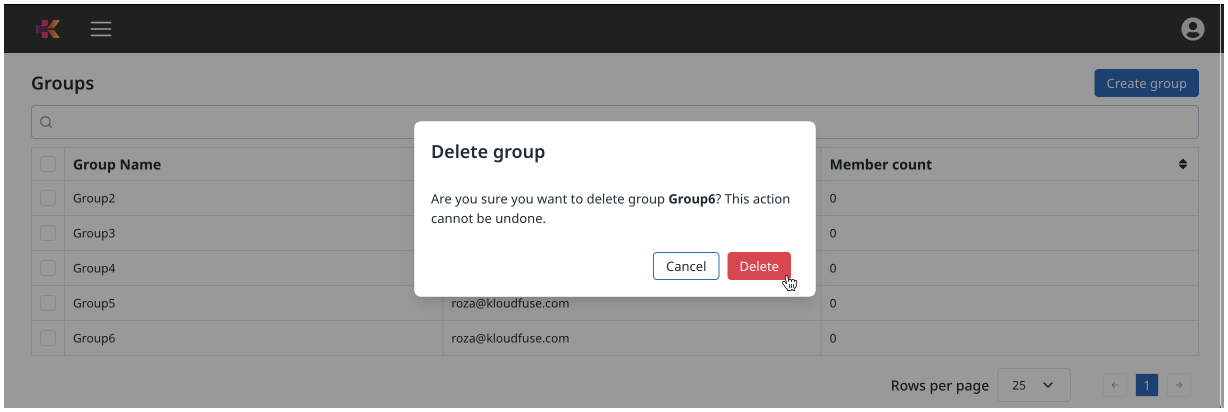
As organizational needs change, we recommend that you delete groups that no longer serve a business need.
To delete a group, follow these steps:
Bulk Delete
Alternatively,
-
Select one or more folders using the checkbox to the left of the folder row.
 Bulk Delete
 -
Kloudfuse displays the number of selected folders and a Delete button.
-
Click Delete, and follow the these steps.
